
Operating Expenses (Opex)
How to Set Up Operating Expenses (Opex) in WhatSales
Operational Expenses (Opex) allow you to record business expenses that are not directly linked to individual orders, such as rent, salaries, software subscriptions, utilities, marketing, insurance, and other overhead costs.
Adding Opex helps you get a more accurate view of your overall business profitability within WhatSales.
How to Add an Opex Expense
- Navigate to the Opex section in WhatSales. https://app.whatsales.io/Expenses
- Click Add New Expense.
- Complete the required fields.
- Click Add Expense to save.
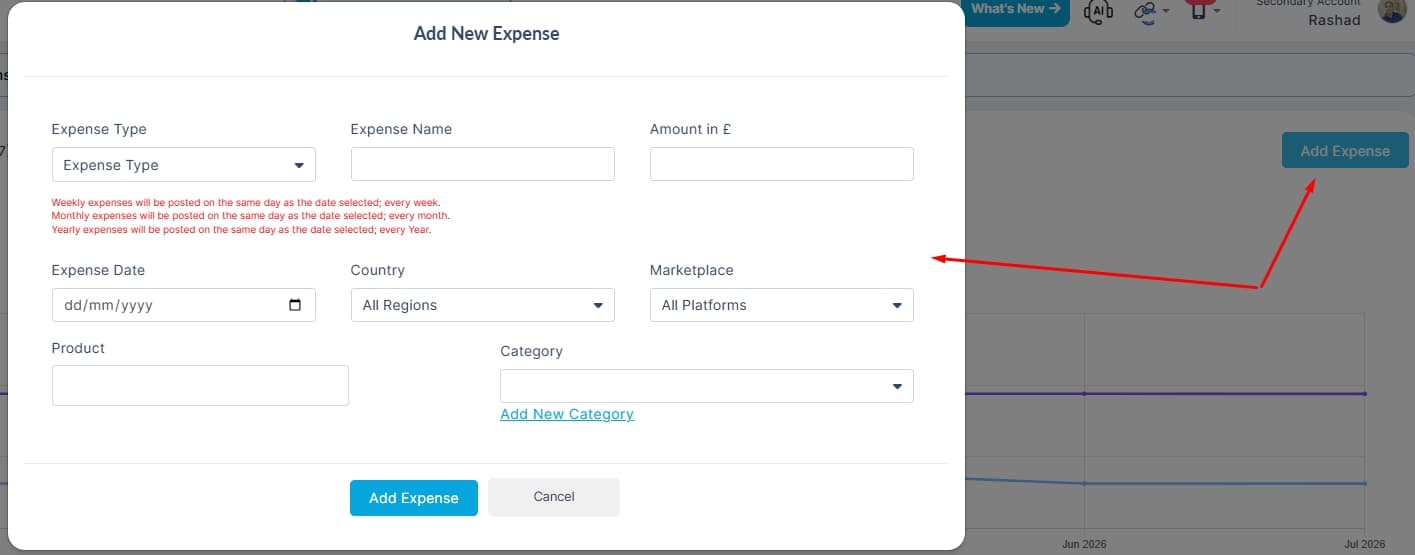
Field Descriptions
Expense Type
Select how often the expense should occur.
Available options include:
- One Time
- Weekly
- Monthly
- Yearly
Recurring expenses will automatically be posted based on the selected start date.
Recurring Expense Notes
- Weekly expenses are posted every week on the selected date.
- Monthly expenses are posted every month on the selected date.
- Yearly expenses are posted every year on the selected date.
Expense Name
Enter a descriptive name for the expense.
Examples:
- Warehouse Rent
- Office Internet
- Staff Salaries
- Shopify Subscription
- Insurance
Choose a name that makes the expense easy to identify in reports.
Amount (£)
Enter the value of the expense.
Example:
- £250
- £1,500
- £45.99
Only enter the expense amount without any additional text.
Expense Date
Select the date when the expense should first be recorded.
For recurring expenses, this date becomes the recurring schedule.
Example:
- Monthly expense created on 15/08/2026
- Future expenses will automatically be created on the 15th of every month
Country
Choose where the expense applies.
Options include:
- All Regions
- Specific country
Use a specific country if the expense only relates to that market.
Example:
- UK warehouse rent → United Kingdom
- US office expenses → United States
Marketplace
Choose the marketplace affected by the expense.
Examples:
- All Platforms
- Amazon
- eBay
- Shopify
- TikTok Shop
If the expense applies across your entire business, select All Platforms.
Product (Optional)
Assign the expense to a specific product if applicable.
Leave this blank if the expense is not related to an individual product.
Example:
- Product photography
- Product certification
- Packaging costs for a specific SKU
Category
Select an existing expense category.
If the required category is not available, click Add New Category and create a new one.
Example categories:
- Rent
- Salaries
- Marketing
- Software
- Utilities
- Insurance
- Professional Services
- Office Supplies
Best Practices
- Create categories before adding large numbers of expenses.
- Use meaningful expense names for easier reporting.
- Select the correct country and marketplace to improve reporting accuracy.
- Use recurring expenses for costs that occur regularly.
- Use one-time expenses for unexpected or non-recurring costs.
This expense will automatically be posted on the 1st of every month until it is removed or updated.
Frequently Asked Questions
Can I create recurring expenses?
Yes. Select Weekly, Monthly, or Yearly as the Expense Type. WhatSales will automatically post the expense based on the selected start date.
Can I assign an expense to a specific marketplace?
Yes. Select the required marketplace when creating the expense. If it applies to your entire business, choose All Platforms.
Can I create my own expense categories?
Yes. Click Add New Category to create a custom category that matches your business requirements.
Can I leave the Product field empty?
Yes. Most operational expenses are business-wide and do not need to be linked to a specific product.
Will Opex affect my profitability reports?
Yes. Opex is included in your business reporting, giving you a more accurate picture of your operating profit after overhead expenses have been taken into account.