Dashboard & Inbox Overview
Advanced Replying: How to Schedule Delayed Replies & Bulk Reply to Customers
Time-Saver Benefit
Scale your customer support and eliminate human errors. Engage allows you to bulk-reply to hundreds of tickets across all marketplaces at once, and schedule delayed replies to give your team a 30-minute safety window to cancel or edit messages before they send.
Step 1: Selecting Multiple Tickets & The Bulk Actions Bar
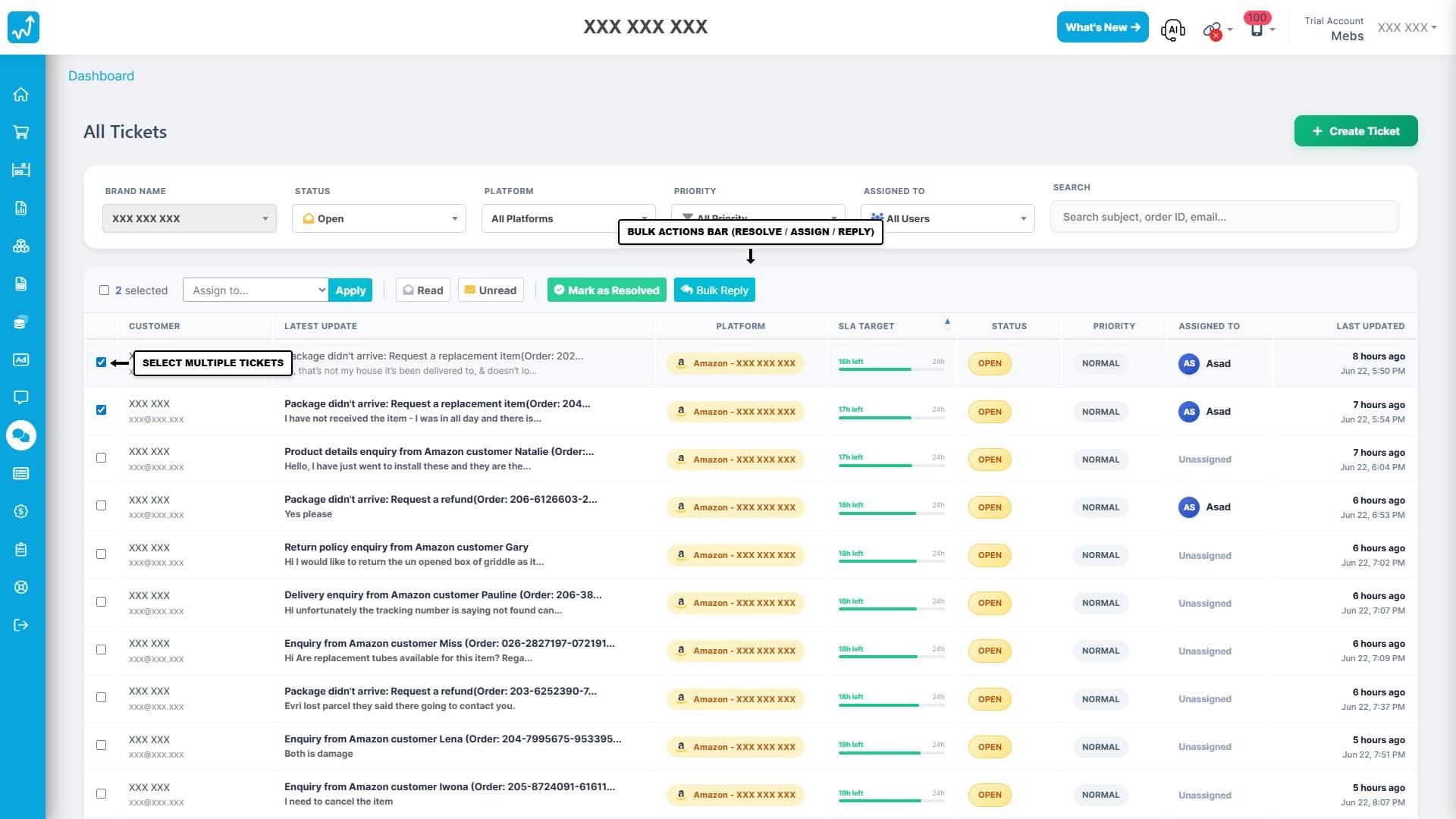
Navigate to the Engage tickets inbox. To execute actions on multiple customer queries simultaneously, click the checkboxes next to the tickets you wish to manage. Checking one or more tickets will cause the Bulk Actions Bar to slide up from the bottom of your inbox view, showing the count of selected items.
Step 2: Drafting and Configuring Your Bulk Reply
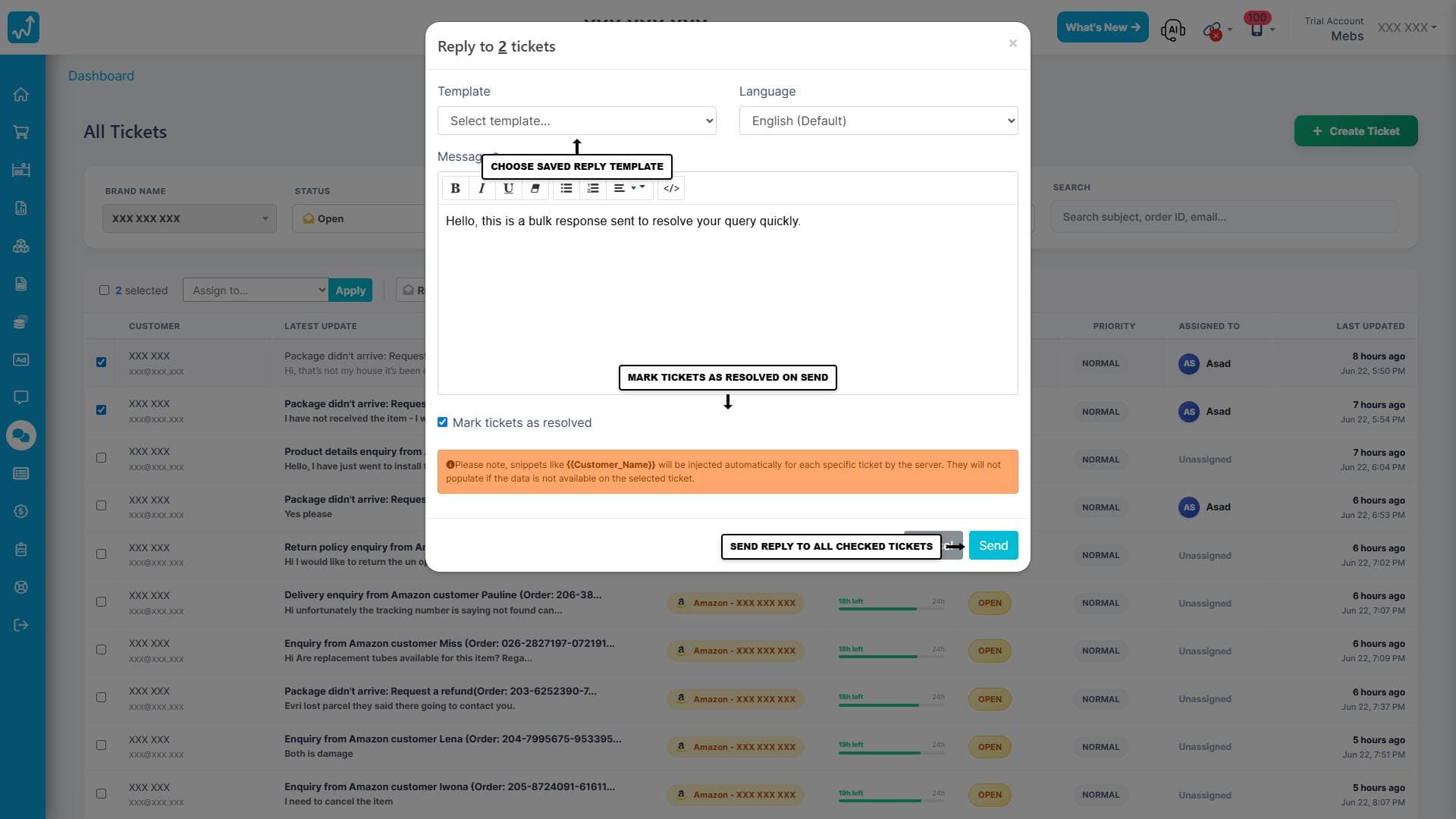
Click the Bulk Reply button in the Bulk Actions Bar to open the configuration modal. Inside the modal, you can select a pre-saved reply template, draft your message in the editor, and choose whether to resolve the selected tickets upon sending by checking the Mark tickets as resolved option.
Step 3: Monitoring Background Delivery and Progress
After clicking Send, the bulk reply runs as a background task utilising SignalR for real-time progress updates. You will see a live percentage progress bar inside the modal. If you close the modal, a floating Mini Progress Toast will appear in the bottom-right corner of your screen, letting you monitor the execution while continuing other work in the dashboard. You will receive a success popup once the batch is fully complete.
Step 4: Scheduling a Delayed Reply (Send in 30 Mins)
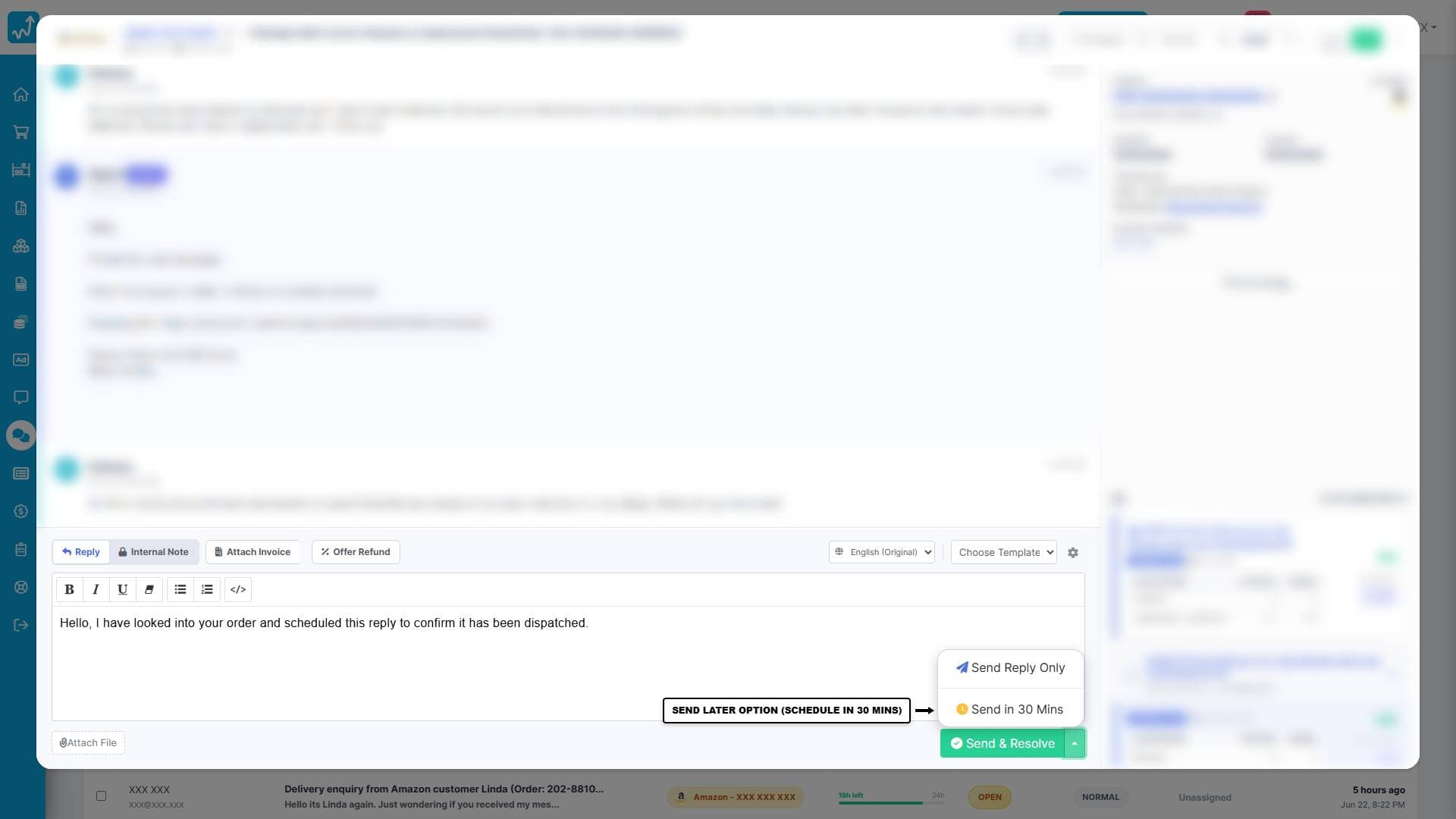
When responding to an individual ticket, you can schedule your message to send with a 30-minute delay. This is useful for scheduling messages outside of office hours or giving agents a buffer to catch errors. To do this, click the Dropdown Arrow next to the Send & Resolve button in the reply editor, and select Send in 30 Mins.
Step 5: Managing and Canceling Scheduled Outbox Messages
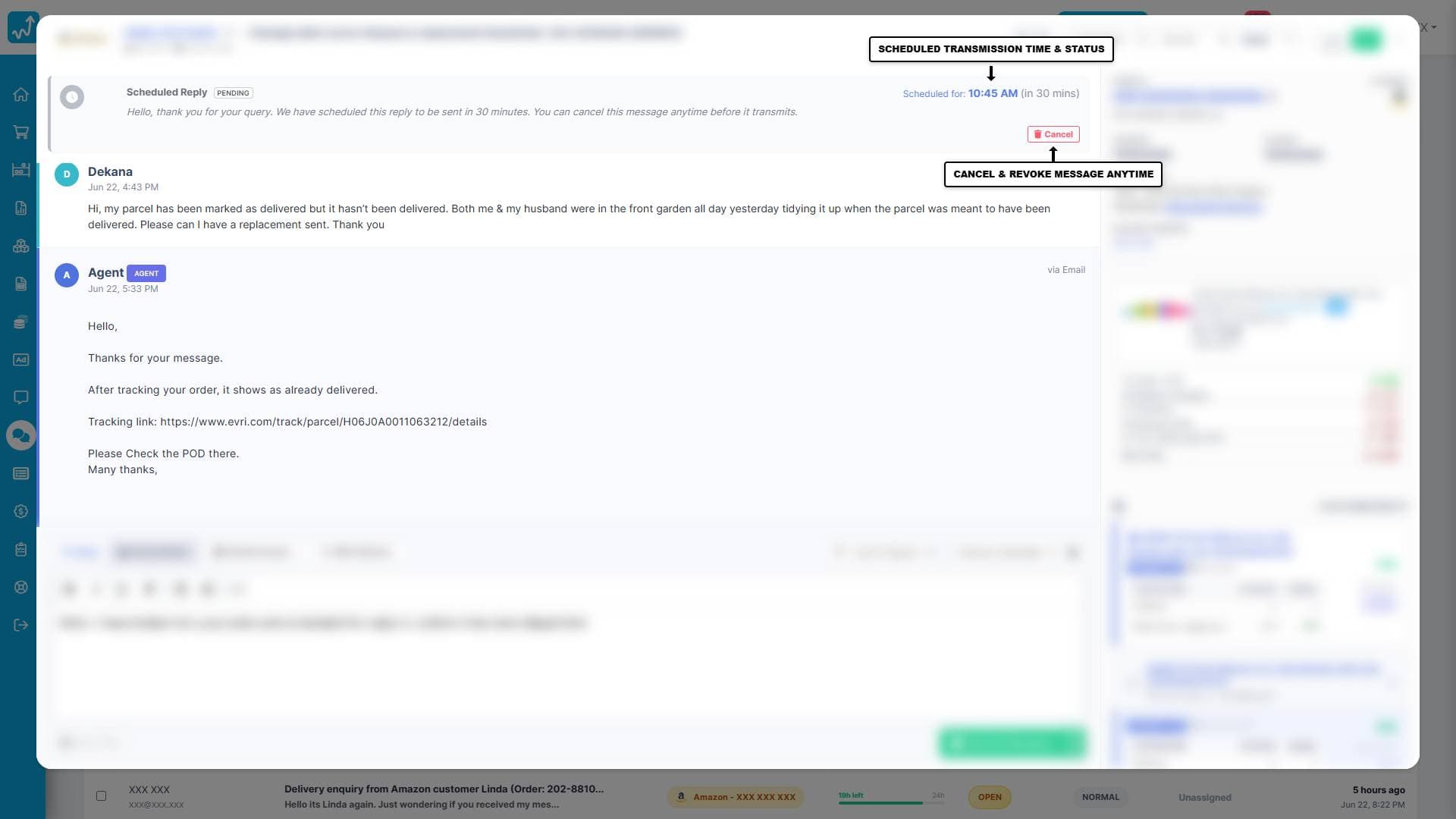
Once scheduled, the message is placed in the ticket outbox. It appears in the ticket chat history timeline with a grey background, a clock icon, and a PENDING badge. A countdown displays the scheduled transmission time. If you need to edit or revoke the message before it sends, click the red Cancel button on the message bubble to delete it from the outbox queue.