Dashboard & Inbox Overview
How to Create, Save, and Use Reply Templates (with Attachments)
Time-Saver Benefit
Eliminate repetitive typing and streamline customer communication. Whatsales Engage allows your support team to save templates, upload attachments (like return labels or invoice PDFs), and dynamically insert customer, order, or shipping details. With the smart autocomplete feature, simply typing _ in the editor instantly suggests templates, reducing reply times to seconds.
Step 1: Accessing the Templates Manager
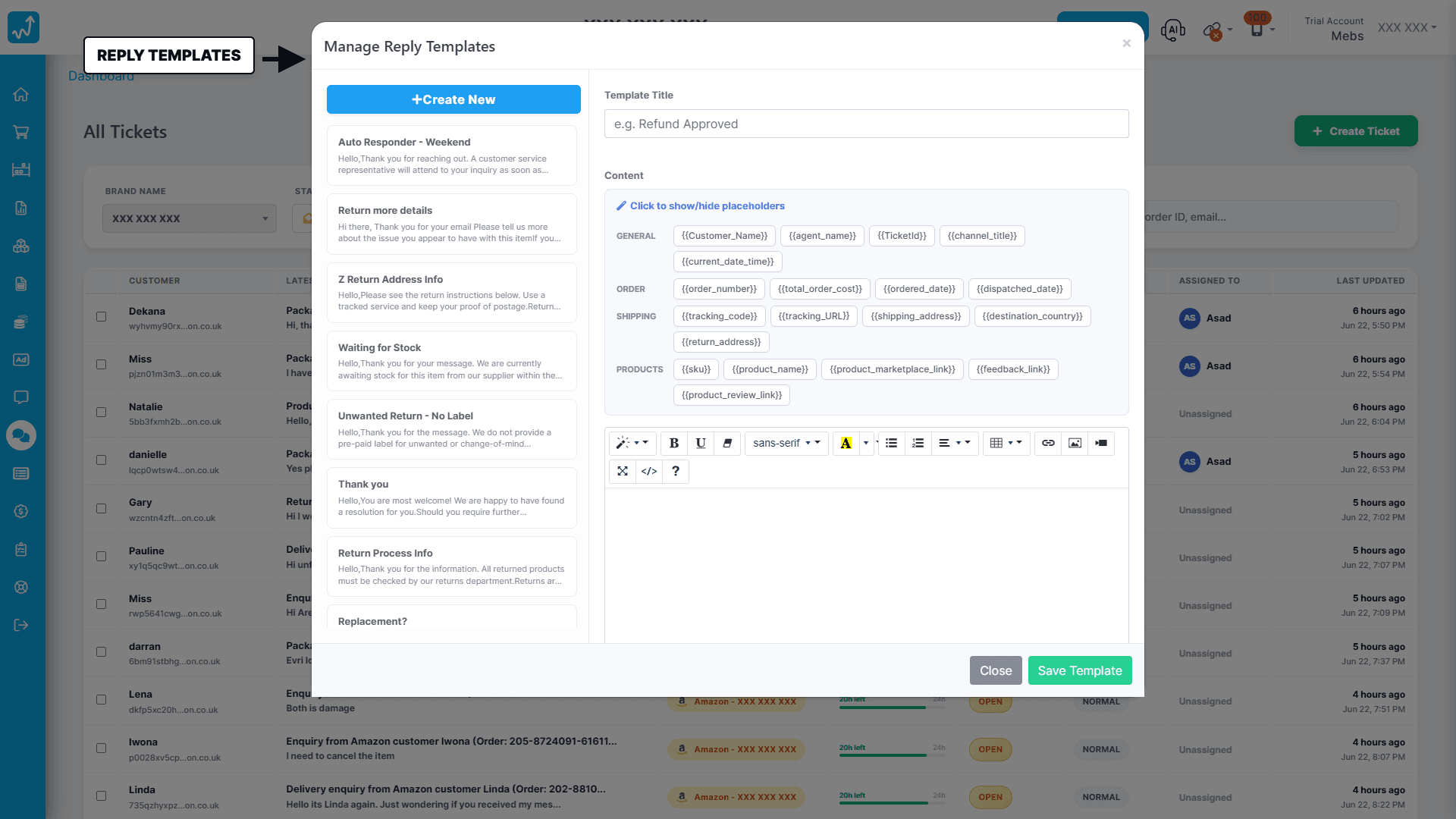
Click on any ticket in your support inbox. In the reply editor panel, click on the Templates button (located in the bottom row of the composer) to open the Manage Reply Templates window. Here, you can search existing templates, edit them, or delete them.
Step 2: Creating a Template & Using Dynamic Placeholders
Click Create New Template. Give your template a descriptive Title and write your template body. You can also upload any files (such as return instructions or shipping labels) to the Attachments field to have them automatically attached when this template is used.To make your templates dynamic and personalised, you can use built-in placeholders (variables). These will be automatically replaced with the actual data from the active ticket when inserted:
- {{CustomerName}} or {{Customer_Name}}: Customer's full name.
- {{AgentName}} or {{agent_name}}: The active agent's first name.
- {{OrderNo}} or {{order_number}}: The marketplace order ID or Linnworks order ID.
- {{TicketId}}: The ID of the active ticket.
- {{channel_title}}: The marketplace name (e.g., Amazon, eBay).
- {{sku}} or {{product_id}}: Product SKU.
- {{product_name}}: Product title.
- {{shipping_address}}: Customer's delivery address.
- {{destination_country}}: The country of shipment.
- {{tracking_code}}: Package tracking number.
- {{tracking_URL}}: Direct link to the carrier tracking page.
- {{ordered_date}} or {{dispatched_date}}: Date of purchase and dispatch.
- {{total_order_cost}}: Order currency and total cost.
- {{product_review_link}}: Automatically generates a direct product review link tailored to the buyer's region and channel (Amazon/eBay).
- {{feedback_link}}: Automatically generates a seller/store feedback link tailored to the buyer's region and channel (Amazon/eBay).
Step 3: Accessing Templates Instantly with Smart Autocomplete ("_")
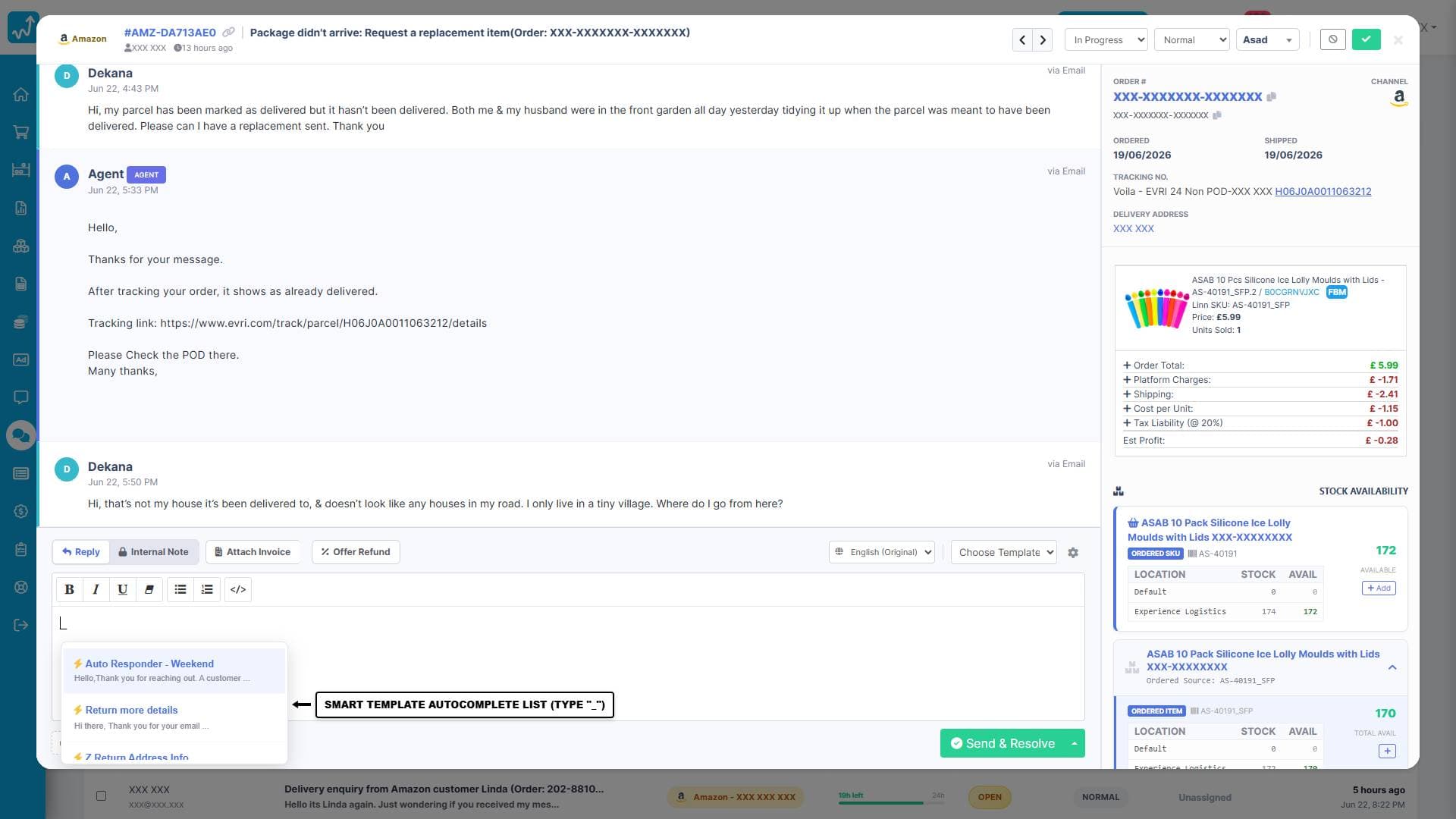
You do not need to open the modal every time you reply. While typing in the English reply text area, type an underscore (_) followed by a keyword (e.g., _return or _refund). A smart dropdown popover will instantly appear, showing all matching templates with their titles and short body previews. Use the arrow keys on your keyboard to navigate the dropdown list, and press Enter to select and insert the template. All placeholders will be dynamically processed and replaced in real-time.