Dashboard & Inbox Overview
How to Navigate and Filter Your Unified Tickets Inbox
Time-Saver Benefit
Control all customer communication from a single tab. Whatsales Engage aggregates incoming messages from Amazon, eBay, Shopify, and B&Q into a unified inbox. By utilising smart filters and deep ticket detail controls, agents can resolve queries, view real-time Linnworks inventory levels, copy direct links, and issue refunds or invoices, saving hours of manual tab-switching.
Step 1: Navigating the Unified Tickets Inbox
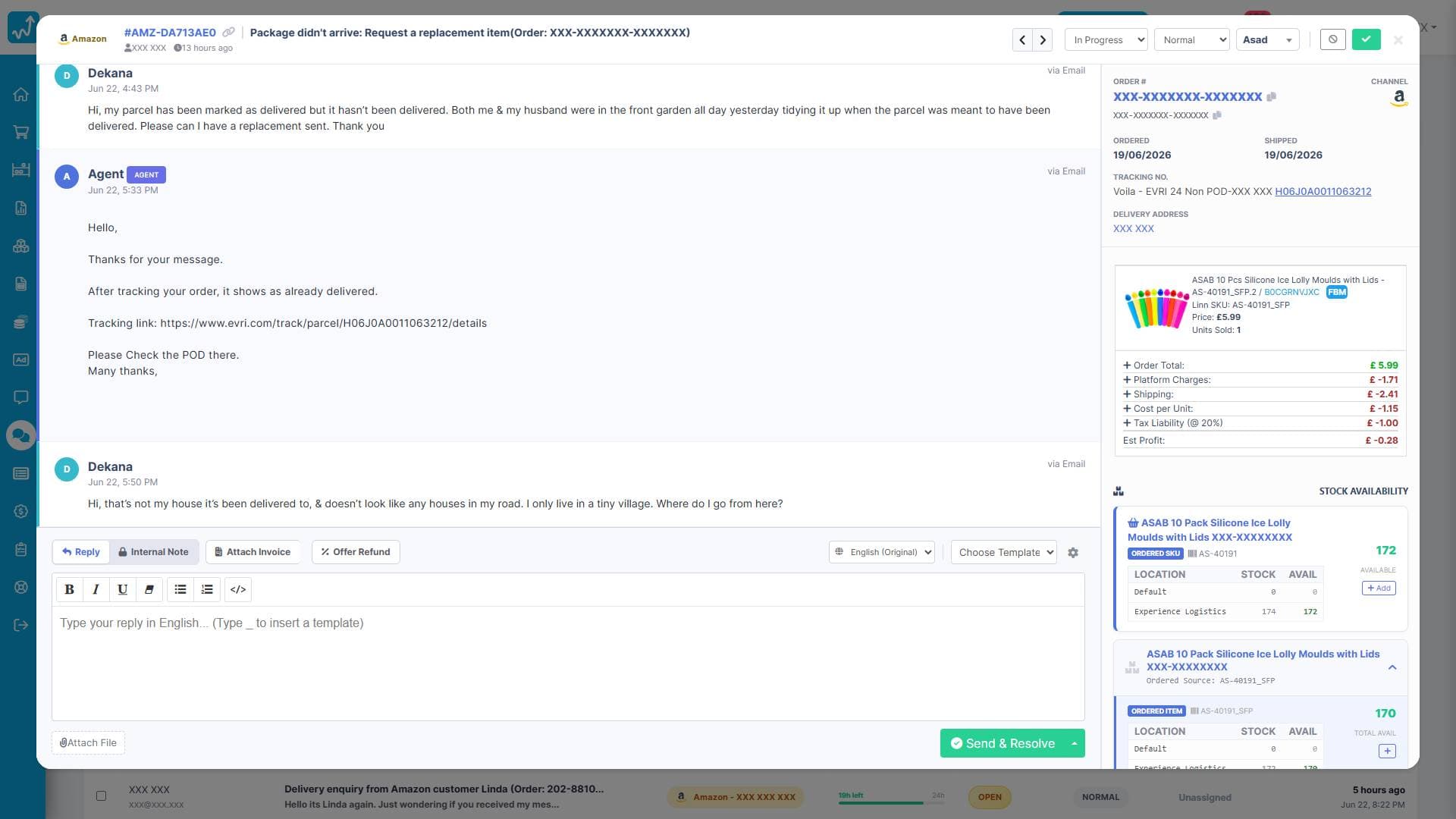
To view your ticket feed, navigate to Engage in the left sidebar or top menu and select Tickets. You will see a chronological feed of all support requests. Click on any row in the list to open the Ticket Detail modal pop-up overlaying the dashboard. This contains the full conversation history and all order integrations.
Step 2: Accessing and Sharing Tickets via the Header (Nav & Copy Link)
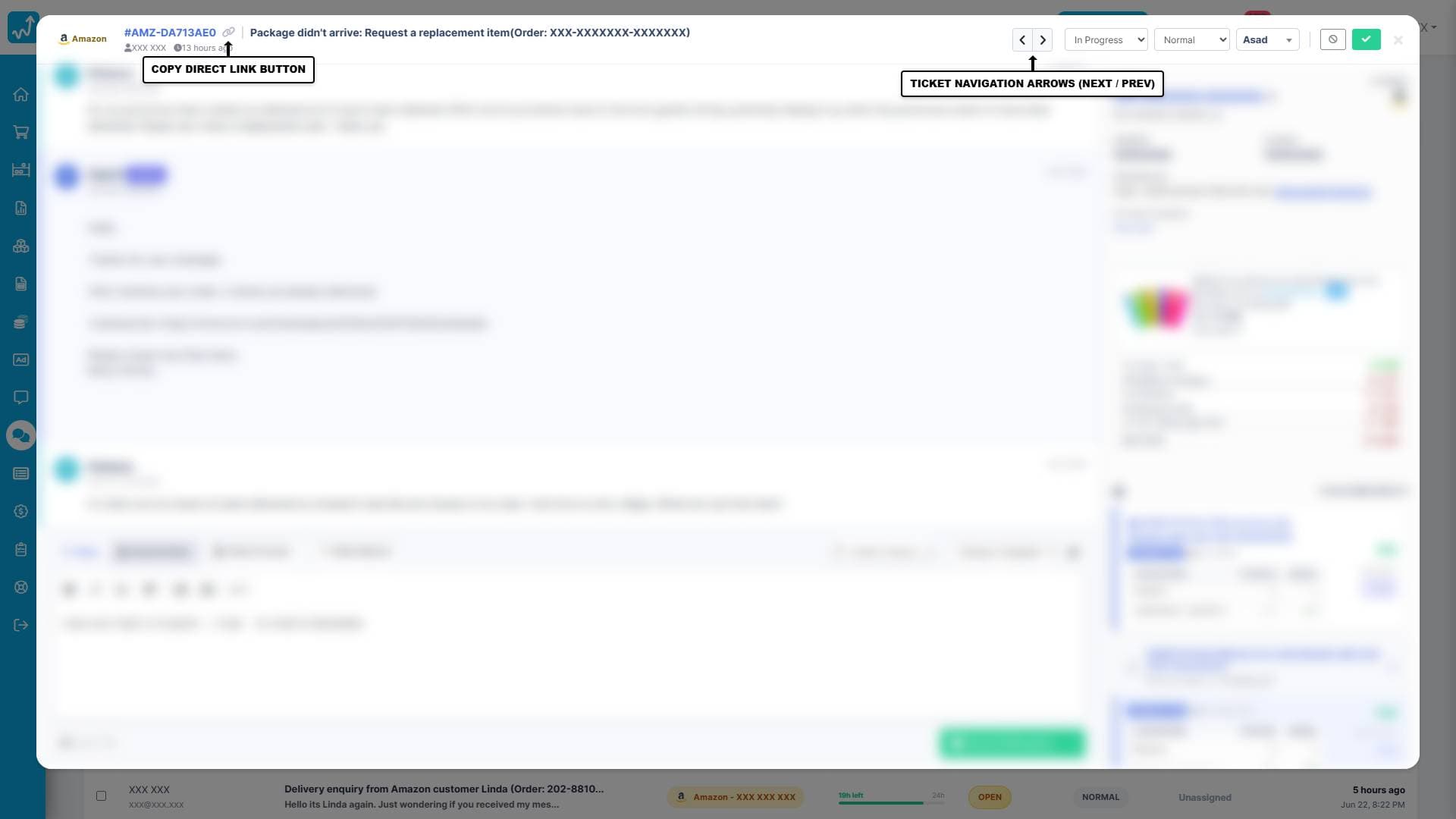
The top header of the ticket detail modal provides crucial metadata and navigation tools:• Navigation Chevron Arrows: In the top-right corner of the modal header, click the Left/Right Chevron Buttons to quickly skip to the previous or next ticket in your queue. This allows agents to work sequentially through messages without closing the modal.• Copy Direct Link Button: Click the Link Icon next to the Ticket ID number (#XXXX) to instantly copy the direct ticket link to your clipboard. This allows team members to quickly share specific ticket pages (e.g., Tickets/AllTickets.aspx?ticketId=XXXX) with administrators or other agents for escalation.• Status, Priority, and Assignee Selectors: Quickly change the ticket's active state (Open, In Progress, Resolved), priority levels (Low, Normal, High), or assign the ticket to specific agents directly from the dropdown menus in the header.
Step 3: Examining Order Details & Linnworks Stock Availability (Sidebar)
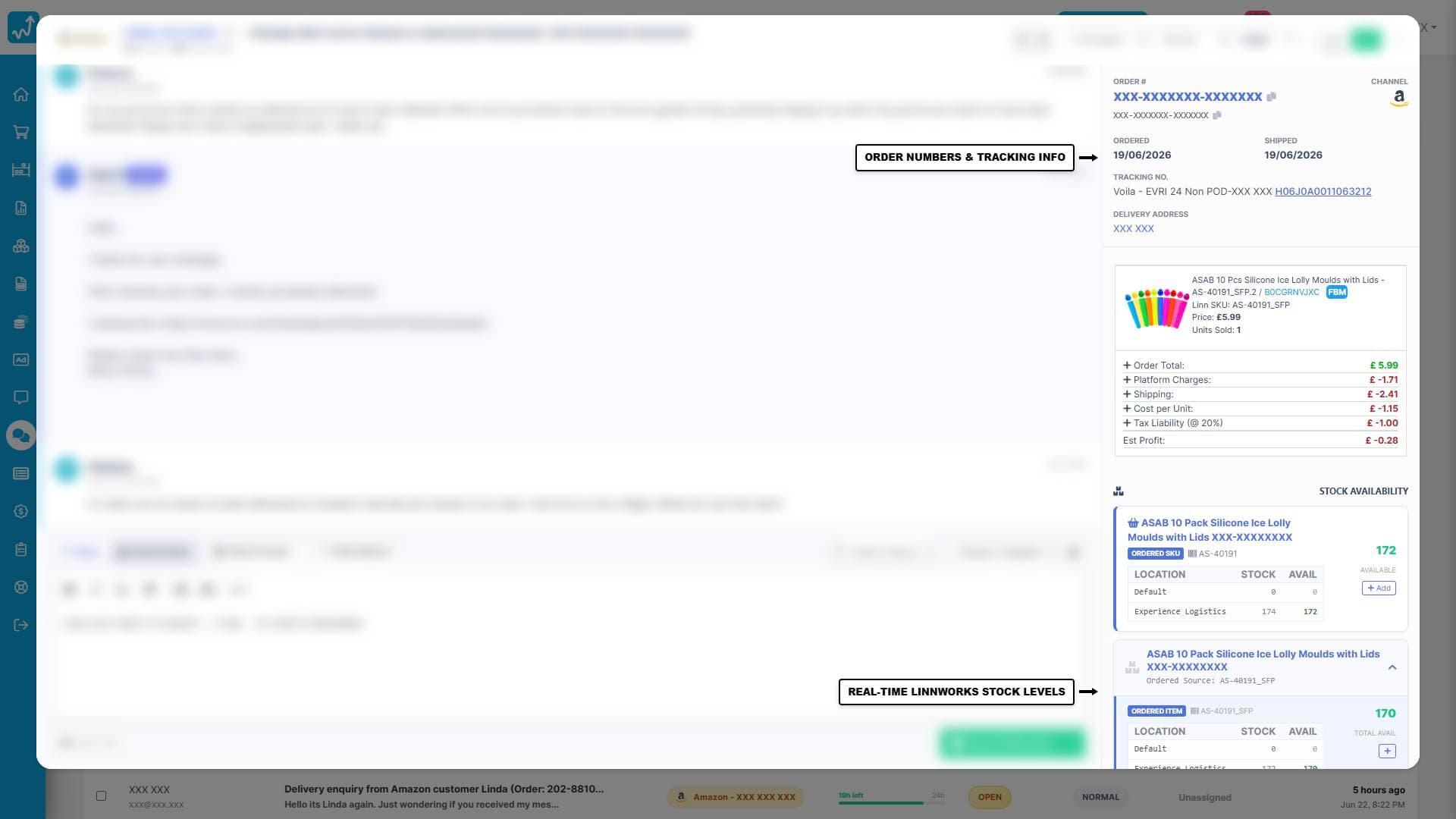
The right sidebar of the ticket details modal is a live integration hub containing order details and warehouse data:• Order Details Card: View the channel order ID, Linnworks order ID, purchase date, dispatch date, and shipping carrier info. Click the Copy Icon next to any order number to copy it. Click the Tracking Link to open the live shipping status on the carrier's portal.• Delivery Address: Displays the buyer's shipping address.• Linnworks Stock Availability: Real-time integration displays the current stock levels of the ordered SKU directly from Linnworks warehouses. If stock is low, agents can see exactly which warehouse has inventory.• Orders Stats: Displays a summary of the customer's total order history, purchase frequency, and lifetime value (LTV).
Step 4: Managing Invoices and Refunds (Action Footer)
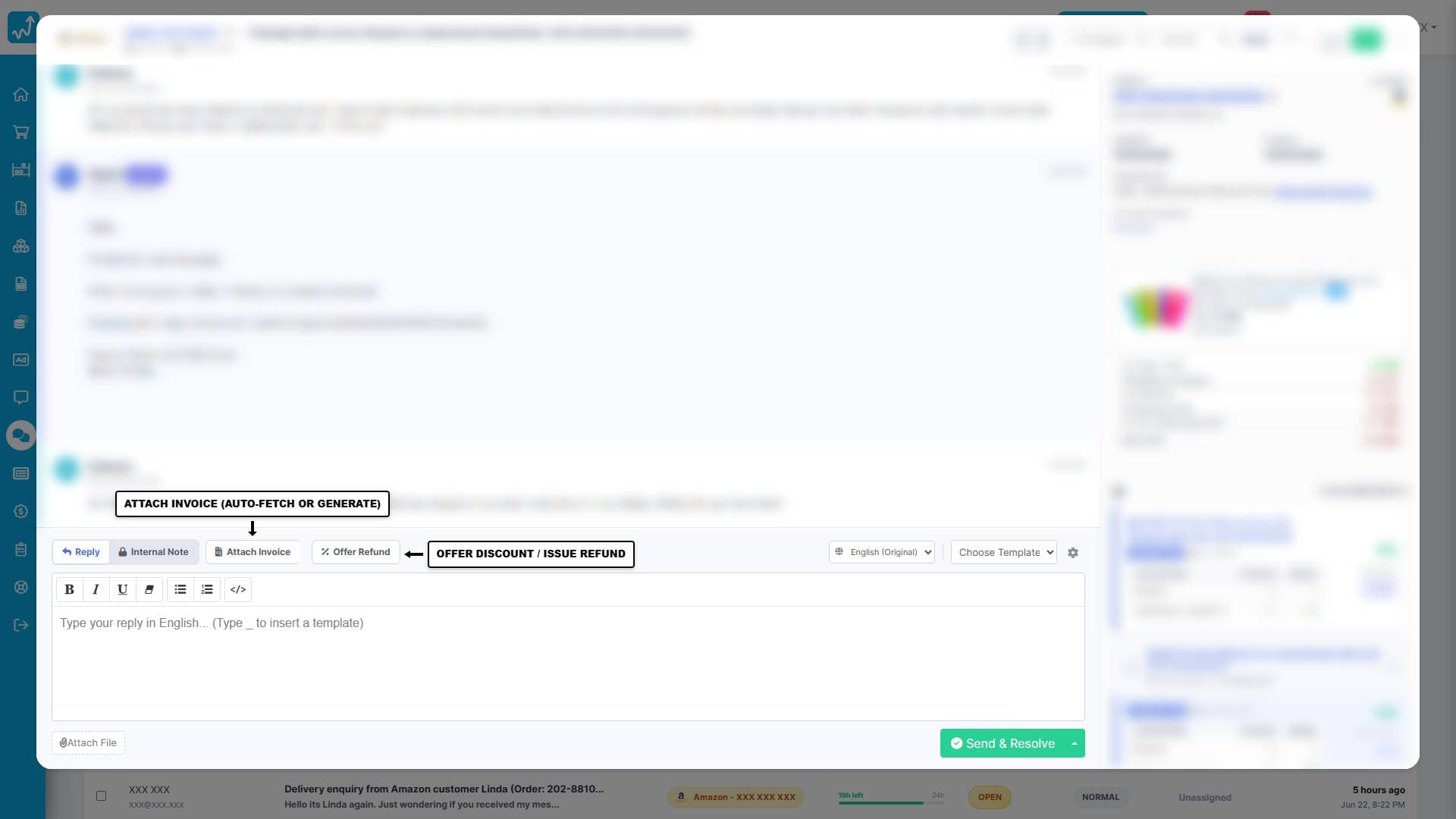
Directly above the text composer, support agents can trigger advanced workflows:• Attach Invoice Button: Clicking this button will attach the invoice for the order to the reply. If a Linnworks channel is connected, the system automatically fetches the invoice PDF directly from Linnworks. If Linnworks is not connected, Whatsales Engage dynamically generates a custom invoice using the client's order information. Clicking the small dropdown arrow next to the button allows you to open a modal and edit the invoice details (customer name, shipping address) manually before generating the PDF. To customise your invoice templates and setup details, check out our Invoice Settings Guide.• Offer Discount/Refund Button: Open the quick refund overlay to issue a partial discount, return shipping allowance, or full refund directly to the buyer's payment account. For a step-by-step walkthrough, check out our Refunding and Discounts Guide.
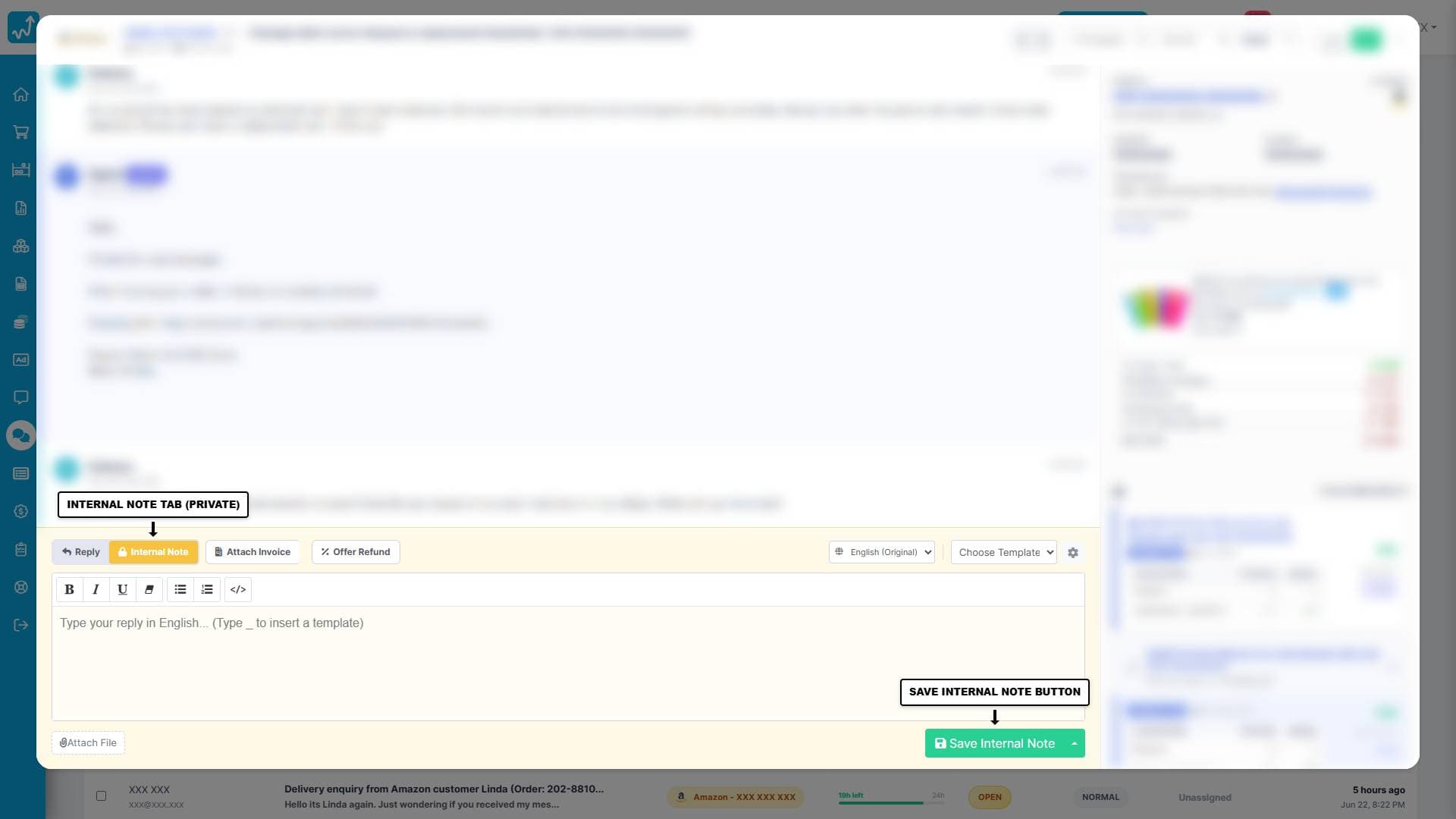
Step 5: Logging Private Team Notes (Internal Note)
If you need to log private notes, record phone conversations, or collaborate with other team members without emailing the buyer, use the Internal Note feature:• Switching Modes: Click the Internal Note tab located next to the Reply button at the top of the composer area.• Visual Workspace Indicator: The entire editor area will shift to a **distinct yellow/gold background** to visually signal that private note mode is active.• Saving Notes: Draft your message and click the **Save Internal Note** button. The note is pinned privately inside the ticket history. It is visible to your staff but is **never sent to the customer**.