
Manage Users & Permissions
How to Remove a Secondary User
If you no longer want a secondary user to have access to your WhatSales account, you can remove their permissions from all brands.
Step 1: Open Secondary Users
Go to: https://app.whatsales.io/SecondaryUsers
You will see a list of all secondary users added to your account.
Step 2: Edit the User
Find the user you want to remove and click the Edit icon.
Example
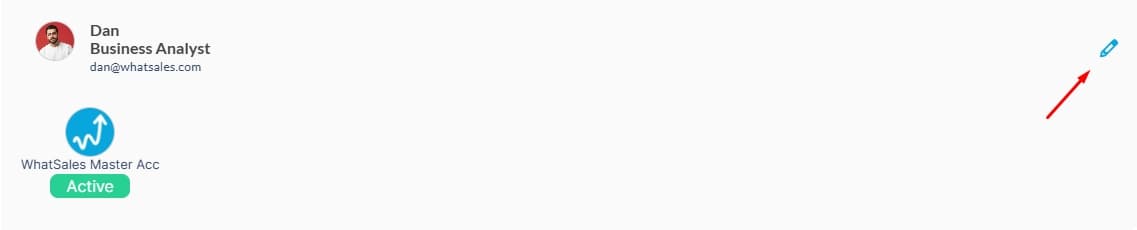
Step 3: Remove Permissions
Inside the Update User window:
- Uncheck all permission boxes for the user.
- If you have multiple brands, you can:Keep permissions enabled for specific brands only, or
- Uncheck all permissions across all brands to completely remove the user's access.
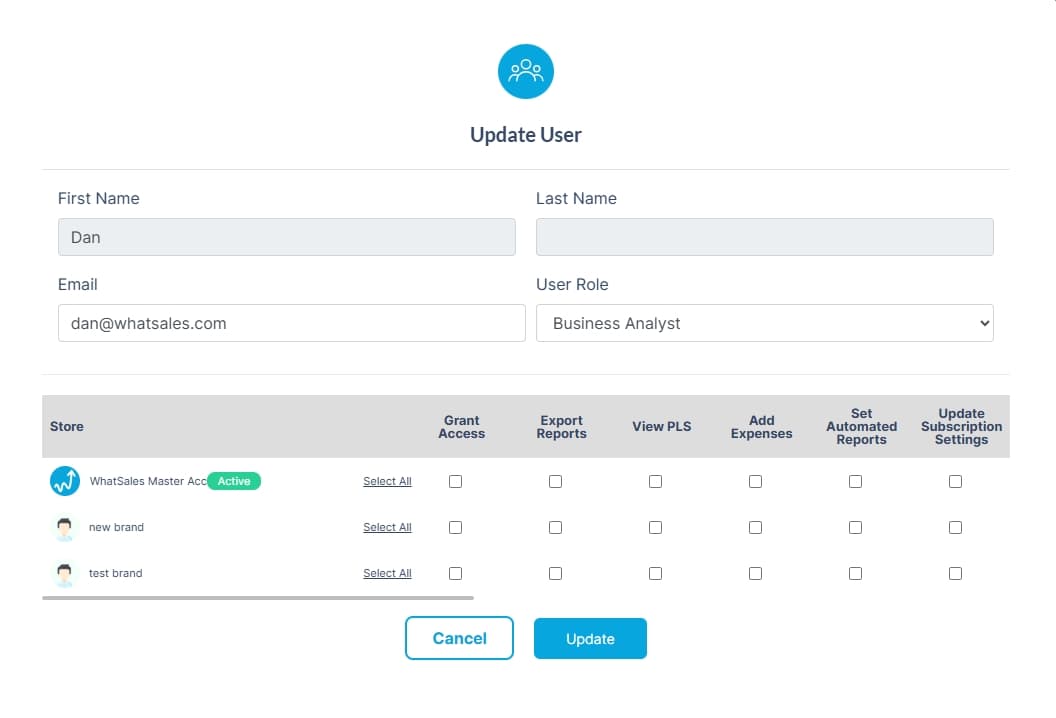
Available permissions may include:
- Grant Access
- Export Reports
- View PLS
- Add Expenses
- Set Automated Reports
- Update Subscription Settings
Step 4: Save Changes
Click the Update button after removing the permissions.
Once all permissions are removed, the user will no longer have access to your WhatSales account.
Notes
- Removing permissions from a specific brand only removes access to that brand.
- Removing permissions from all brands removes the user completely.
- The user's account record may still appear in the user list, but they will not be able to access any data without permissions.