
Orders & Refunds
How to Add Per Order Costs in WhatSales
This guide will walk you through using the "Apply Cost" feature in the WhatSales app to add specific costs to orders based on filters or individual products.
Go to the orders page: https://app.whatsales.io/Orders
- Click "Show More Button"
- Click "Apply Cost Per Order"

Step 1: Open the "Apply Cost" Feature
- In the Orders Section of the app, locate the "Apply Cost" button.
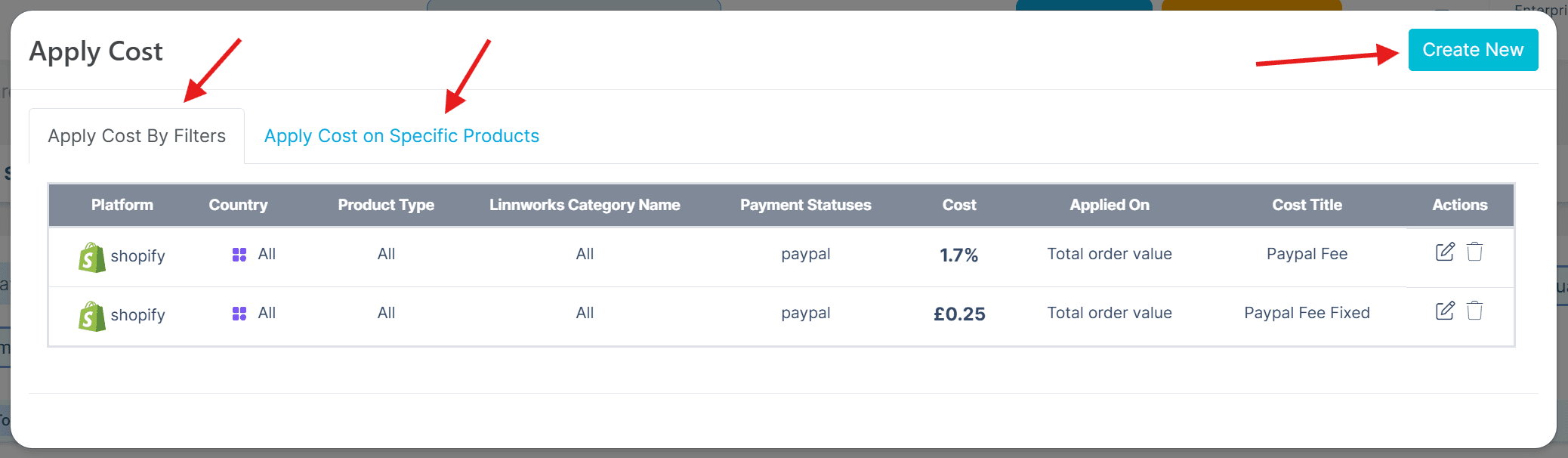
- Click on it to open the "Apply Cost" window.This window shows any existing cost rules that have been applied (e.g., PayPal fees).
- You can either modify an existing rule or create a new one.
Step 2: Create a New Cost Rule
- Click the "Create New" button at the top-right corner of the "Apply Cost" window.
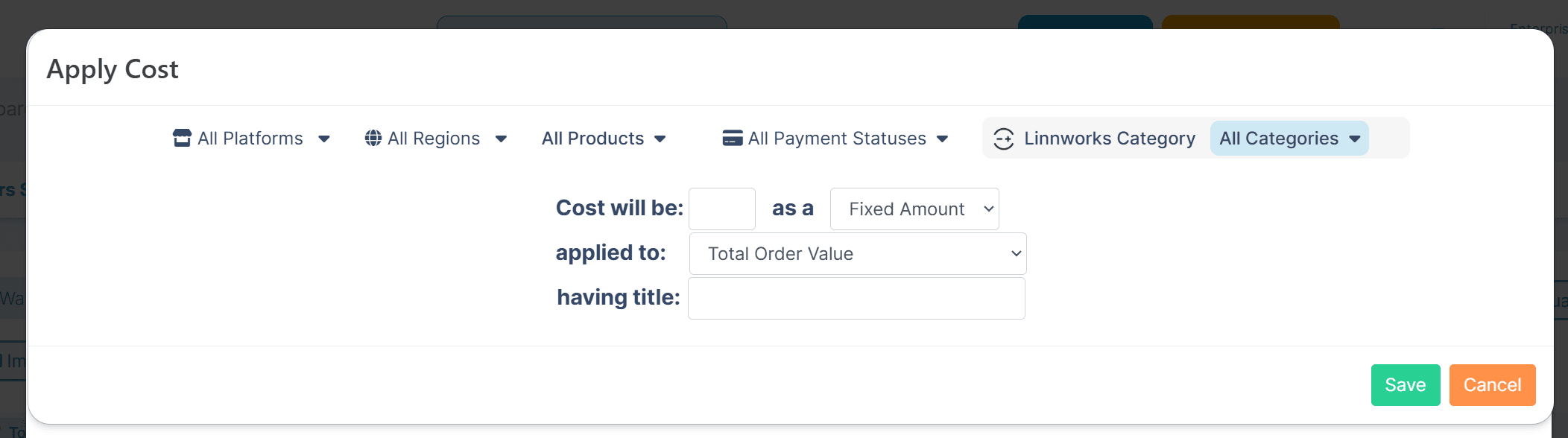
- A new form will appear with configurable filters.
Step 3: Configure Filters for Cost Application
- Set Filters:Platform: Select the selling platform (e.g., Shopify, Amazon) for the cost rule.
- Country: Choose a specific country or select "All" for a global rule.
- Product Type: Filter by product type if applicable.
- Linnworks Category Name: Narrow down by product categories.
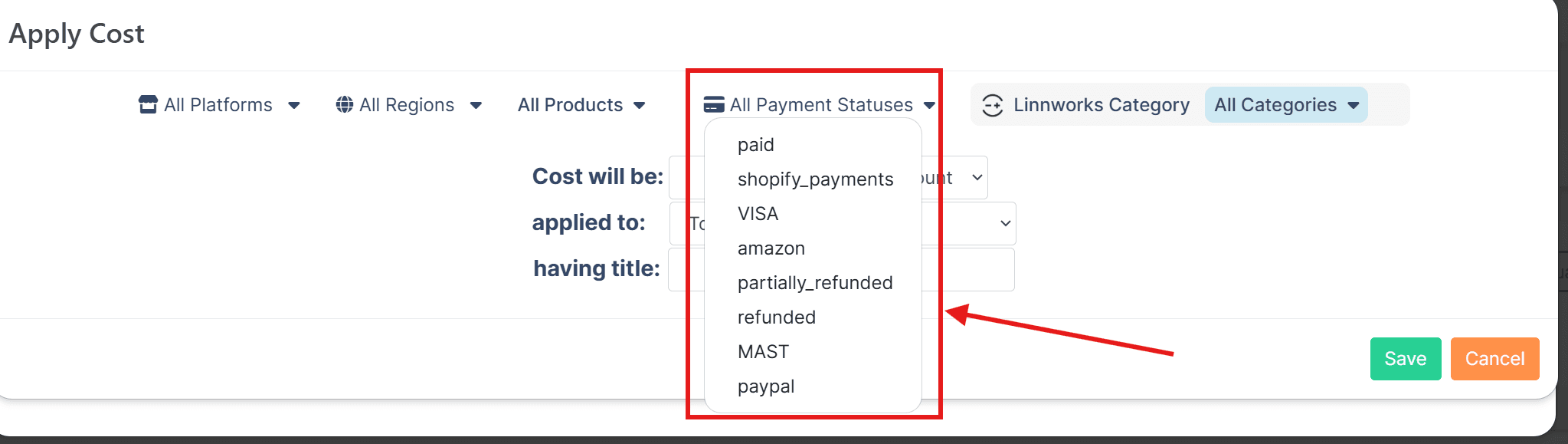
- Payment Status: Choose the payment method (e.g., PayPal, Klarna, Visa).Refer to the dropdown in Image 3 for available options.
- Define the Cost:Enter the cost amount.
- Choose one of the following:Fixed Amount: Enter a static cost value.
- Percentage: Apply a percentage of the order's value.
- Set the percentage basis:Total Order Value
- Item Price (with VAT)
- Item Price (without VAT).
- Add a Title:Provide a descriptive title for the cost rule (e.g., "PayPal Processing Fee").
- Save or Cancel:Click "Save" to create the rule.
- If you change your mind, click "Cancel".
Step 4: Apply Costs to Specific Products
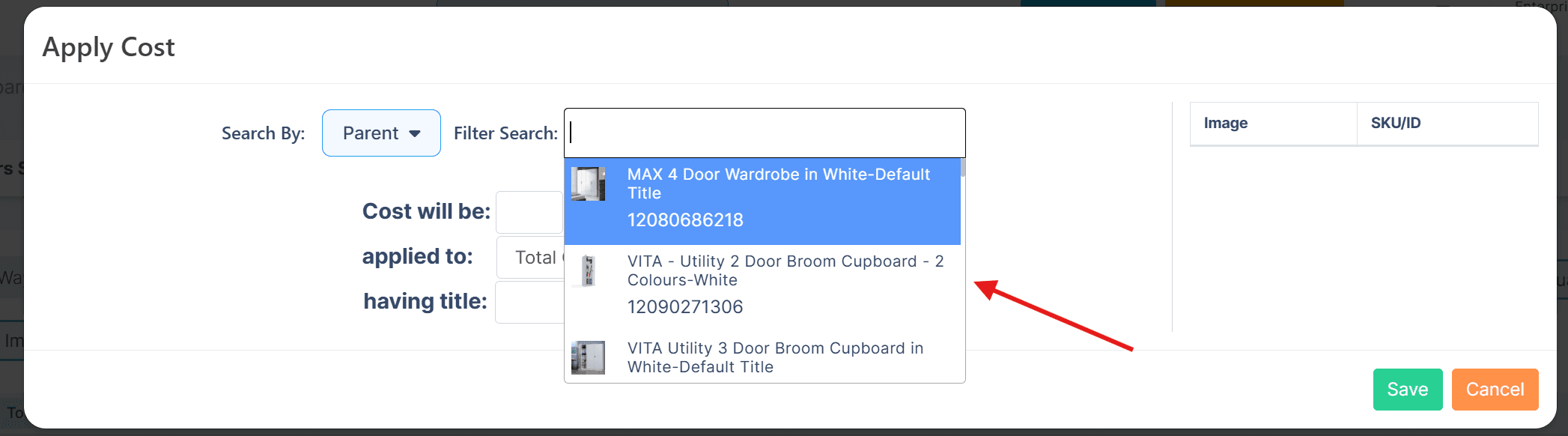
- Go to the "Apply Cost on Specific Products" tab.
- Use the Search By dropdown to locate the product using one of the following:ASIN
- Parent SKU
- Linnworks ID
- Manual Groups.
- After identifying the product:Define the cost parameters (similar to Step 3).
- Save the rule to apply the cost.
Why This Feature is Invaluable for Ecommerce Sellers
- Payment Fee Tracking: Addresses gaps in platforms like Shopify that don’t record fees from third-party processors.
- Royalty Fee Management: Easily handles royalty percentages for licensed or branded products.
- Packaging Costs: Accurately tracks packaging costs for specific products or order types.
- Fulfilment Fees: Supports allocation of third-party fulfilment costs based on platform or region.
- Profit Analysis: Provides detailed profit insights by accounting for all hidden costs.
- Scalable Across Platforms: Allows consistent cost tracking across platforms like Amazon, Shopify, and eBay.
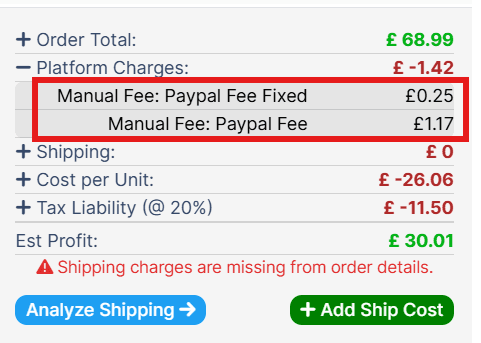
By following this guide, you can ensure all order-related costs are accurately tracked, leading to better financial control and profitability insights in your e-commerce business. If you need further assistance, feel free to contact our support team!