
COGS & Cost Management
How to Replace COGS on Historical Orders
This feature allows you to update the COGS (Cost of Goods Sold) for historical orders after importing new product COGS values.
Important:This action permanently replaces the COGS on matching historical orders and cannot be undone. Please review the impact carefully before confirming.
Before You Start
Before replacing historical order COGS, you must first update the product COGS values.
Step 1: Open the Inventory Page
- Log in to WhatSales.
- Navigate to Inventory.
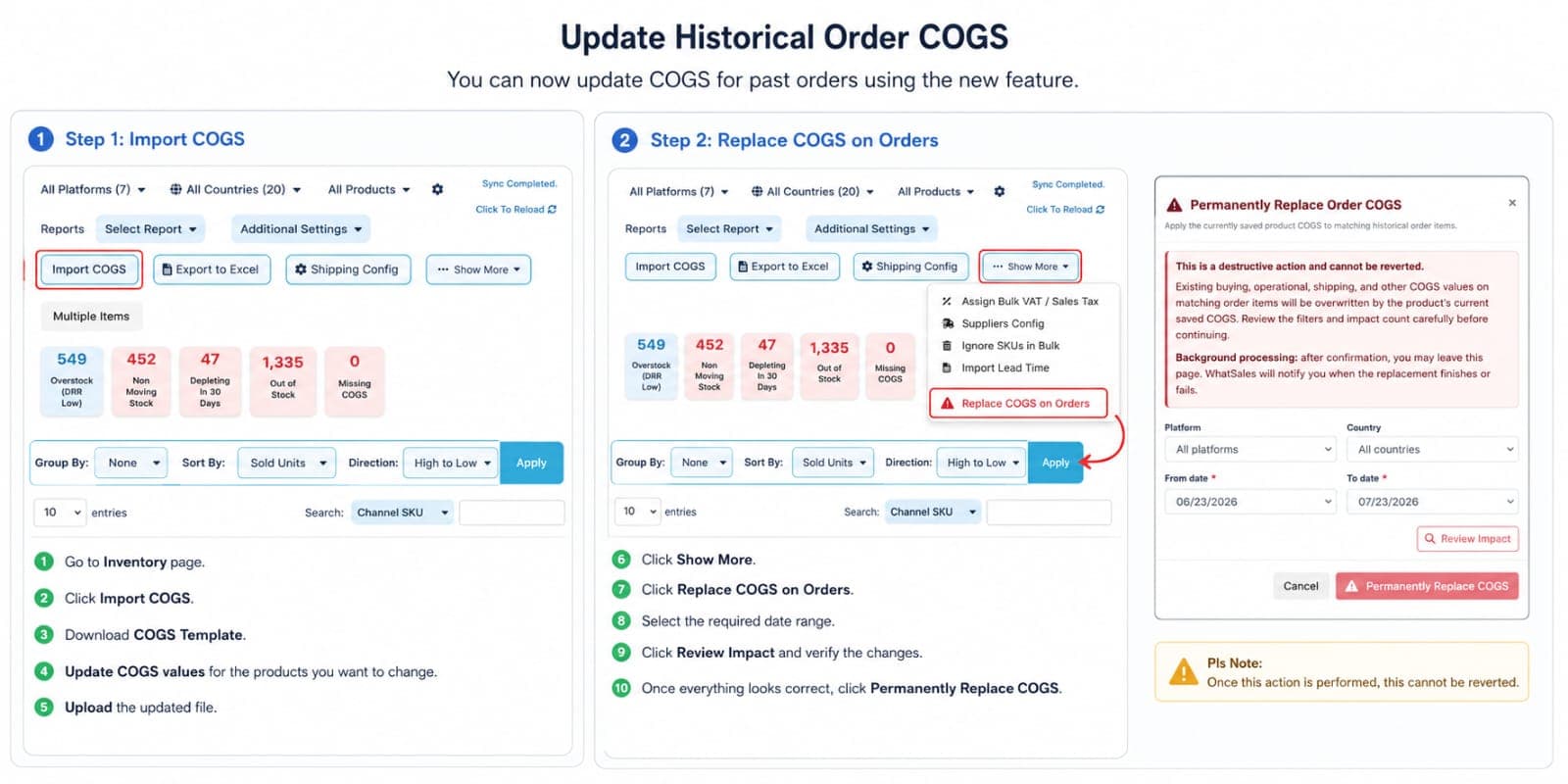
Step 2: Import Updated COGS
- Click Import COGS.
- Download the COGS Template.
- Open the template in Excel.
- Update the COGS values for the products you want to change.
- Save the file.
- Upload the completed template back into WhatSales.
Once the import is complete, the new product COGS will be saved.
Replace COGS on Historical Orders
Step 3: Open the Replace COGS Tool
- Stay on the Inventory page.
- Click Show More.
- Select Replace COGS on Orders.
A new window will open.
Step 4: Configure the Replacement
Select the filters that apply to the orders you want to update.
Available filters include:
- Platform
- Country
- From Date
- To Date
Choose the appropriate date range for the historical orders you want to update.
Step 5: Review the Impact
Click Review Impact.
WhatSales will calculate:
- Number of orders affected
- Number of products affected
- Estimated COGS changes
Carefully review the results before proceeding.
Step 6: Permanently Replace COGS
If everything looks correct:
- Click Permanently Replace COGS.
- Confirm the action.
The replacement will begin as a background process.
You may leave the page while the process runs. WhatSales will notify you once it has completed or if any issues occur.
Important Notes
- This action permanently replaces the existing COGS on matching historical order items.
- Existing Buying, Operational, Shipping, and Other COGS values will be overwritten using the current saved product COGS.
- This action cannot be reverted.
- Always use Review Impact before confirming the replacement.
- If you only want to update future orders, simply import the new COGS. Running the Replace COGS on Orders feature is only required when you also want historical orders to reflect the new COGS.
Frequently Asked Questions
Will this update future orders?
Yes. Importing new product COGS automatically applies the new values to future orders.
Will historical orders update automatically?
No. Historical orders remain unchanged until you run the Replace COGS on Orders feature.
Can I undo the replacement?
No. Once the replacement has been confirmed, it cannot be reversed.
Can I leave the page while it runs?
Yes. The replacement runs in the background, and you will be notified once it has finished.