
Product Performance
How to Set Up Goals
Goals in WhatSales help e-commerce sellers track their performance across key metrics like ACOS, ROAS, TACOS, and more. You can set goals collectively or at a product level, grouped by SKU, Linnworks ID, Parent, or Manual Groups. Here’s a step-by-step guide:
1. Managing Collective Goals
How to Access:
- Click on the "Collective Goals" button in the Product Performance Page.
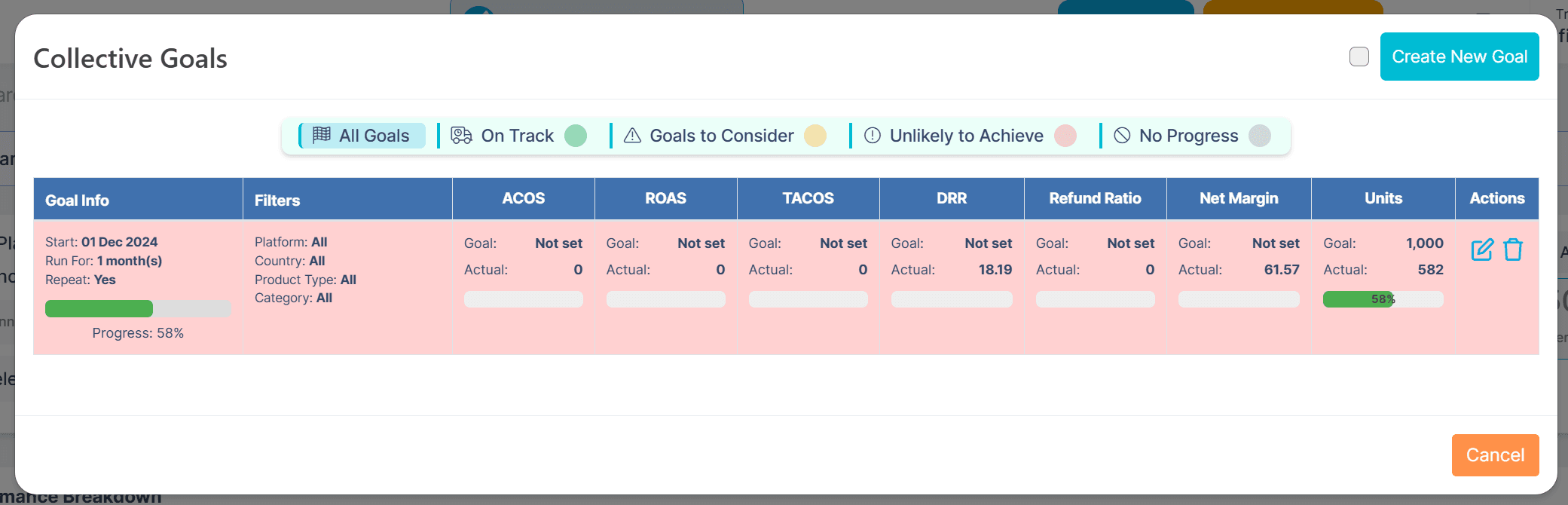
What You See:
The Collective Goals screen is divided into various views:
- All Goals: Shows all active and inactive goals collectively.
- On Track: Goals progressing well, shown in green.
- Goals to Consider: Goals that may need attention, shown in yellow.
- Unlikely to Achieve: Goals in danger of failing, shown in red. These indicate that if progress continues at the current pace, the goal won't be achieved.
- No Progress: Goals with no progress made yet.
Key Features:
- You can see progress bars for metrics like ACOS, ROAS, TACOS, DRR, Net Margin, and Units.
- Filter goals by platform, country, product type, or category for detailed insights.
2. Creating a New Goal
How to Access:
- Click on the "Create New Goal" button on the top-right of the Collective Goals screen.
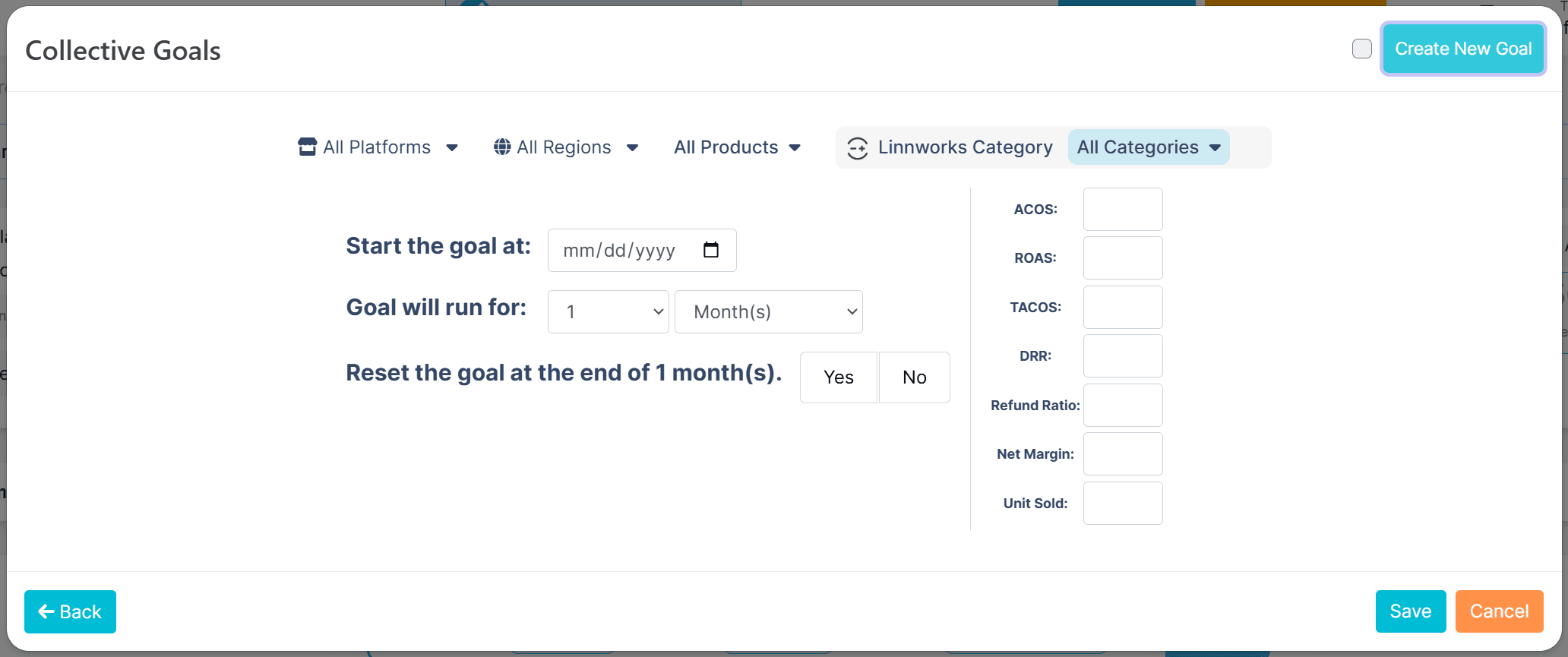
Steps:
- Define Filters:Platform, Region, and Products: Choose the scope of the goal.
- Linnworks Category: Narrow down to specific categories for targeted goals.
- Set Start Date and Duration:Use the calendar to set the start date.
- Choose the goal duration (e.g., days, weeks, or months).
- Define Metrics:Set target values for metrics like ACOS, ROAS, TACOS, DRR, Refund Ratio, Net Margin, and Units Sold.
- Reset Option:Decide whether the goal should reset automatically at the end of the selected duration.
- Save:Click Save to create the goal.
3. Setting Goals for Individual Products
How to Access:
- Click the "Set Your Goal" button for a specific product.
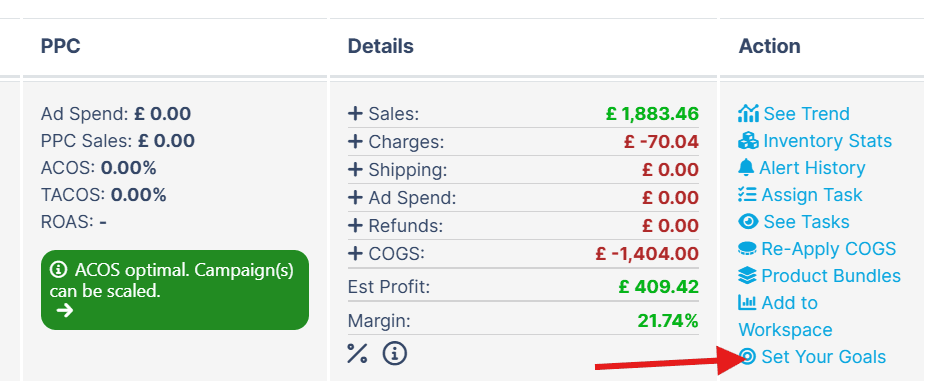
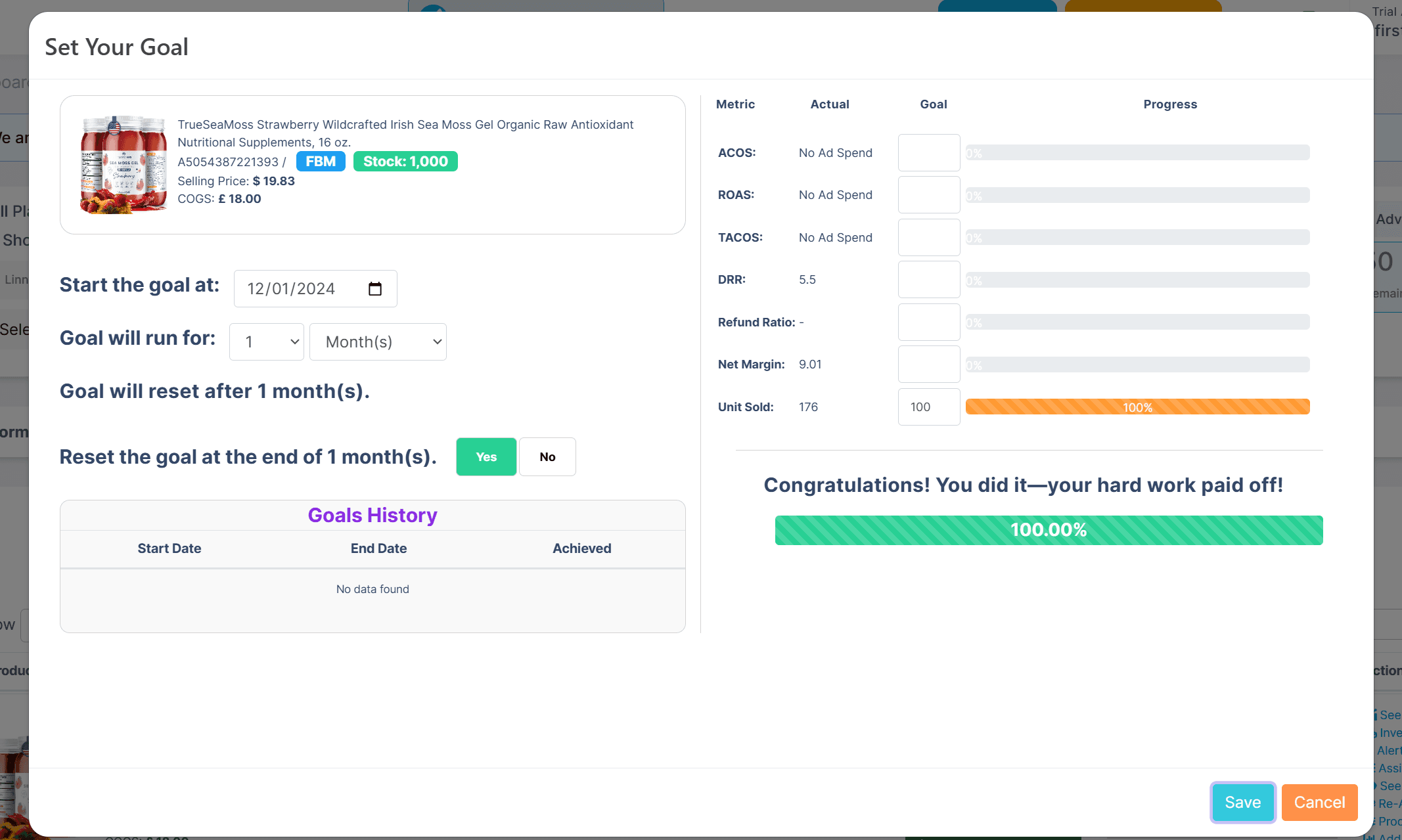
Steps:
- Product-Specific Information:Review product details such as stock, selling price, and COGS (cost of goods sold).
- Set Target Metrics:Define targets for each metric (e.g., ACOS, Units Sold).
- The progress bar will automatically track progress based on live data.
- Recurrence:Specify if the goal should repeat after completion.
- Only one active goal is allowed per product.
- View Goals History:Track the start and end dates of previously achieved goals.
Grouping Options:
- Goals can be set by:SKU
- Linnworks ID
- Parent Group
- Manual Groups
4. Email Notifications for Goal Tracking
How It Works:
Based on the recurring query logic:
- For Monthly Goals:Emails are sent on Day 2, Day 8, Day 14, Day 20, and Day 26 of the goal duration.
- For Weekly Goals:Emails are sent on Day 2, Day 4, and Day 6.
Email Content:
- Summarises the status of all active goals, highlighting:Goals on track with their progress percentages.
- Goals unlikely to achieve or with no progress for immediate action.
Benefits for Sellers:
- Timely Alerts: Enables proactive adjustments to marketing, pricing, or inventory strategies.
- Performance Insights: Helps identify weak areas across platforms, regions, or product categories.
- Revenue Optimisation: By tracking progress toward net margin and unit sales goals, sellers can focus on profitability.
Benefits of Setting Goals in WhatSales
- Track Key Metrics: Monitor performance in real-time across multiple dimensions like ACOS, ROAS, and TACOS.
- Increase Profitability: Stay aligned with profitability targets by keeping metrics like Net Margin and Refund Ratios in check.
- Proactive Decision-Making: Get timely alerts and detailed progress reports to make data-driven adjustments.
- Focus on Growth: With clear goals, sellers can prioritise scaling their e-commerce business without losing sight of critical metrics.
This guide ensures that sellers can maximise their performance monitoring and achieve better business outcomes with WhatSales