
Shipping
Set up Shipping Prices (Linnworks Users)
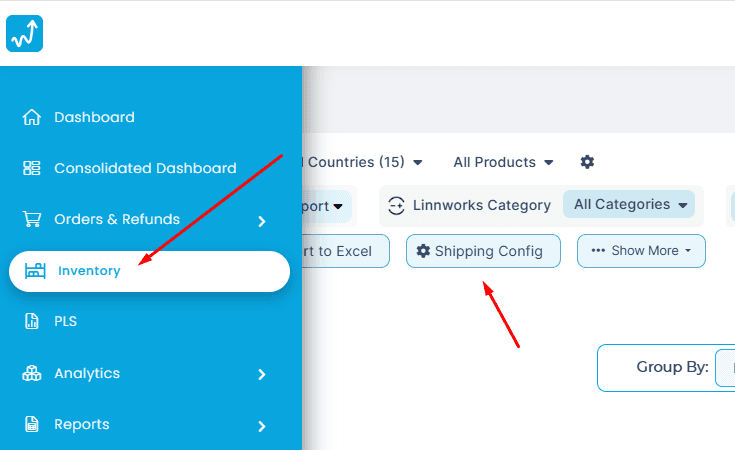
Go To Inventory From the Side Menu of WhatSales Dashboard
- Click Shipping Config
OR
- Go directly to this link:https://app.whatsales.io/LinnworksShipping
On the Shipping Price Setup page, you will see a list of shipping providers synced from Linnworks.
You now need to set the shipping rates for each provider.
Step 1: Import Shipping Rates Using CSV
You can quickly upload your shipping rates by importing a CSV file:
- Click on “Import Shipping Rates”.
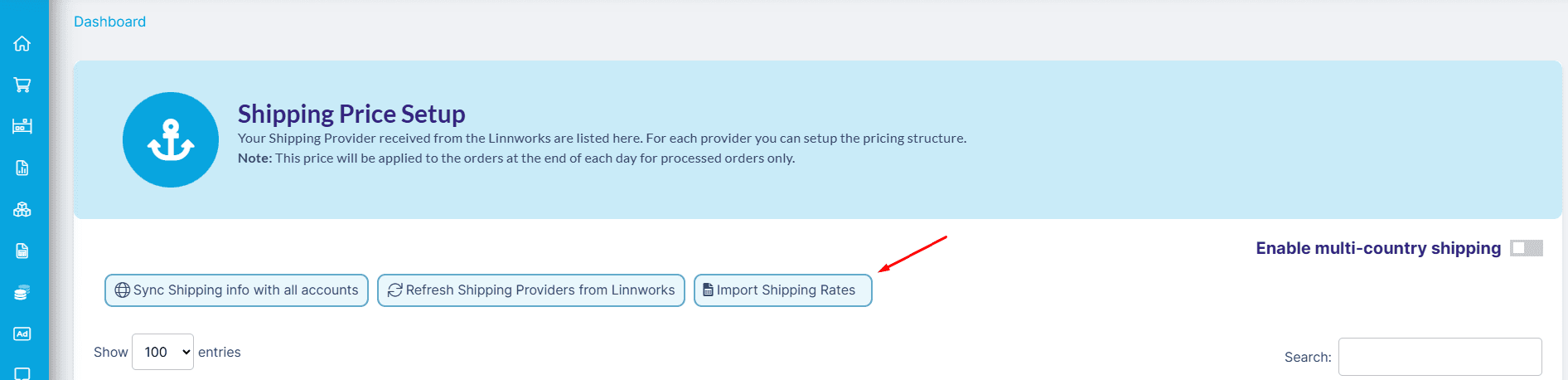
- Download the Shipping Rates Template to see the required format.
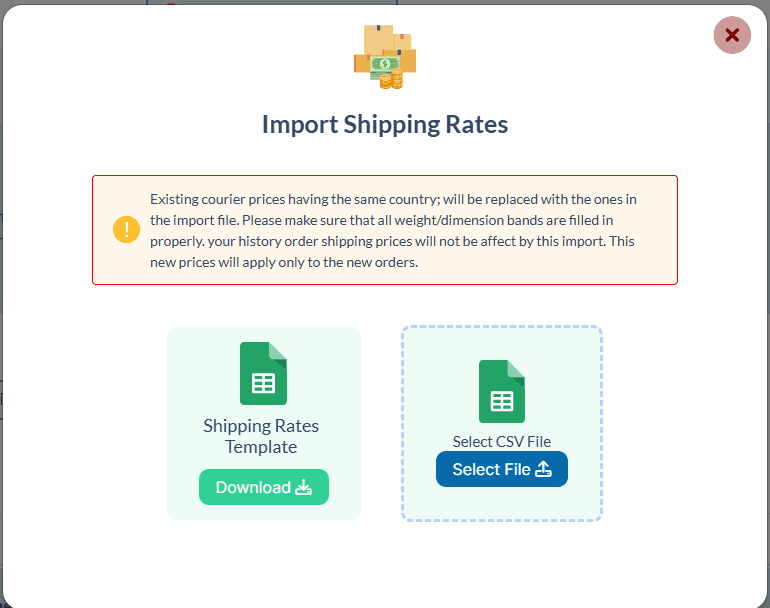
- Fill in your shipping providers, pricing, weight bands, and dimensions in the CSV.
- Upload the completed file by clicking “Select File” and the rates will be imported into the system.
🚨 Note: Existing prices for the same country will be replaced. These updates apply only to new orders.
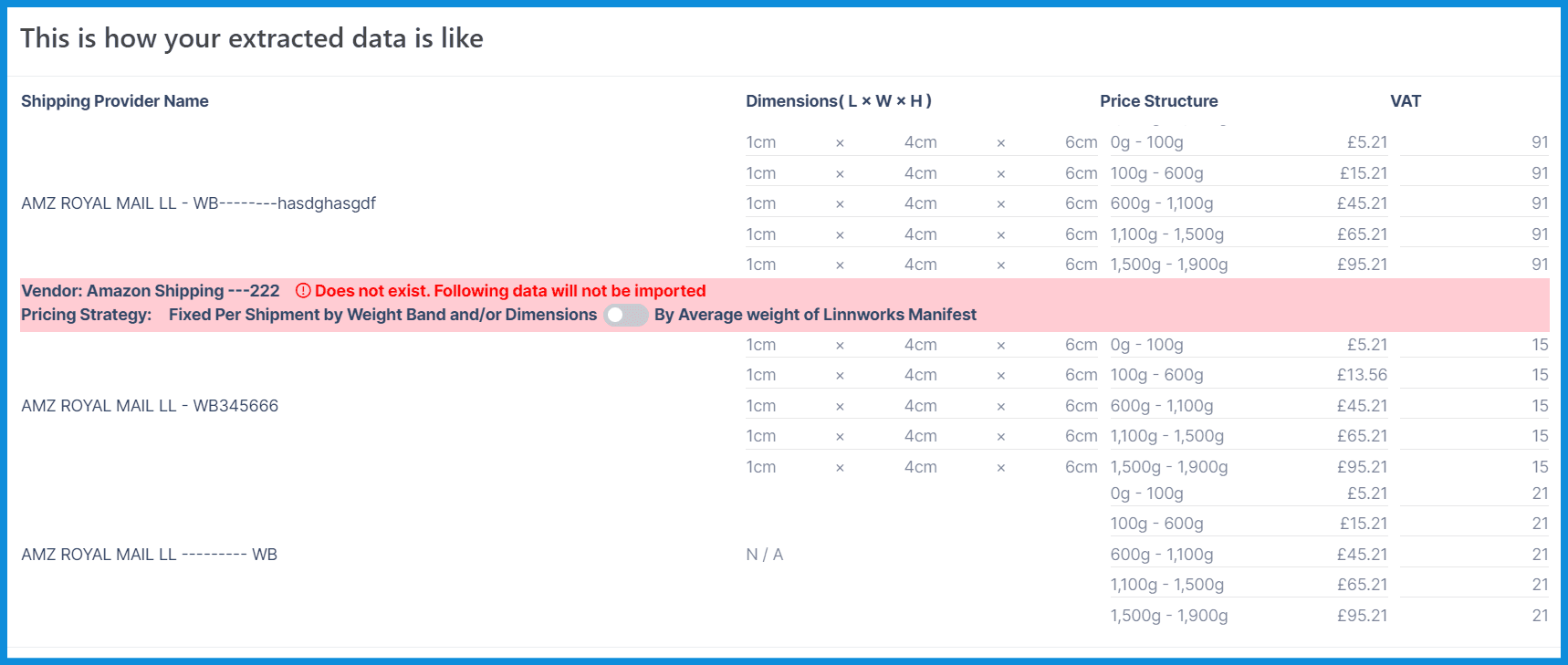
If the file you uploaded does not match the format of the template we provided, errors will be displayed.
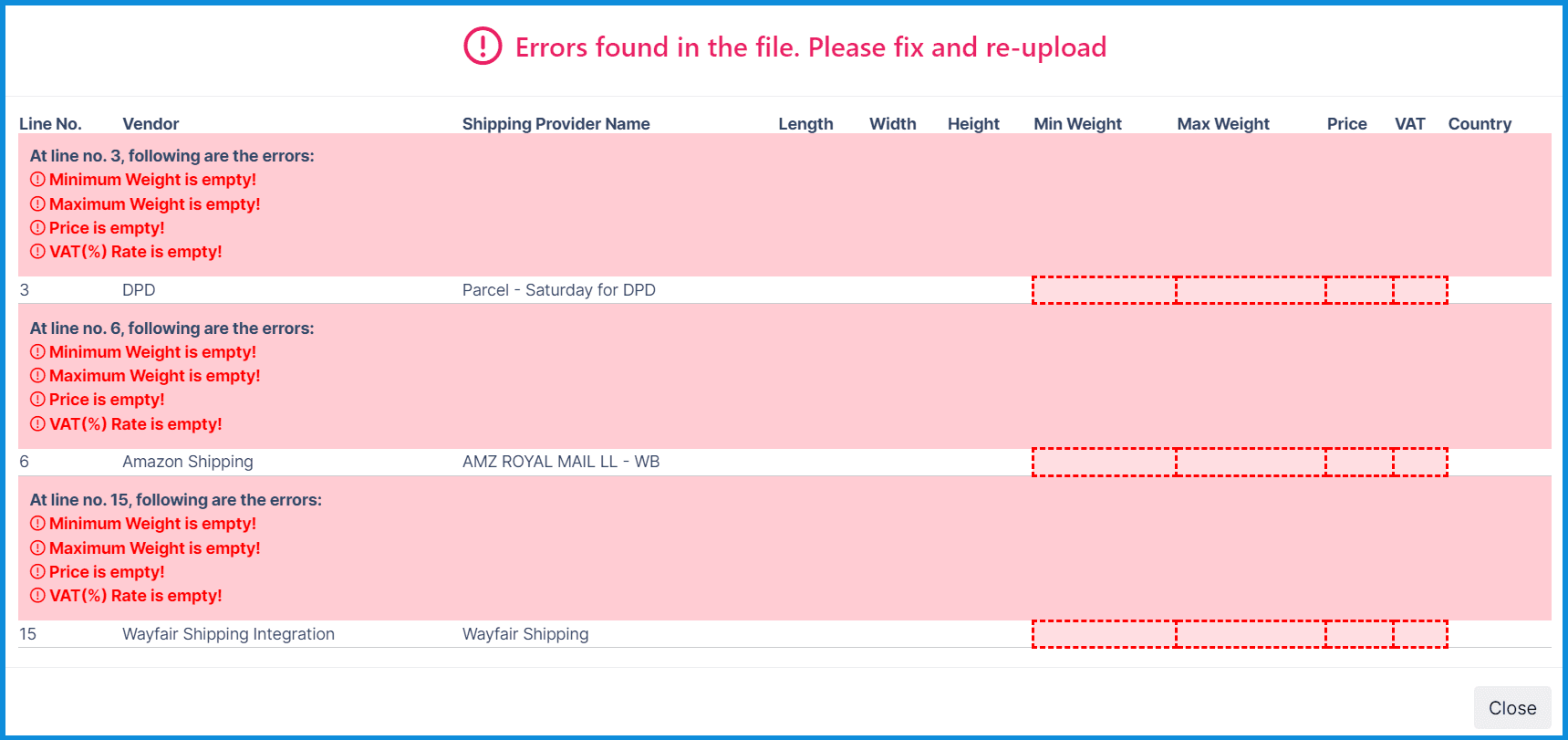
Try removing those errors and then upload the file again.
Step 2: Manually Add or Adjust Shipping Rates
If you prefer, you can manually configure rates for any shipping provider:
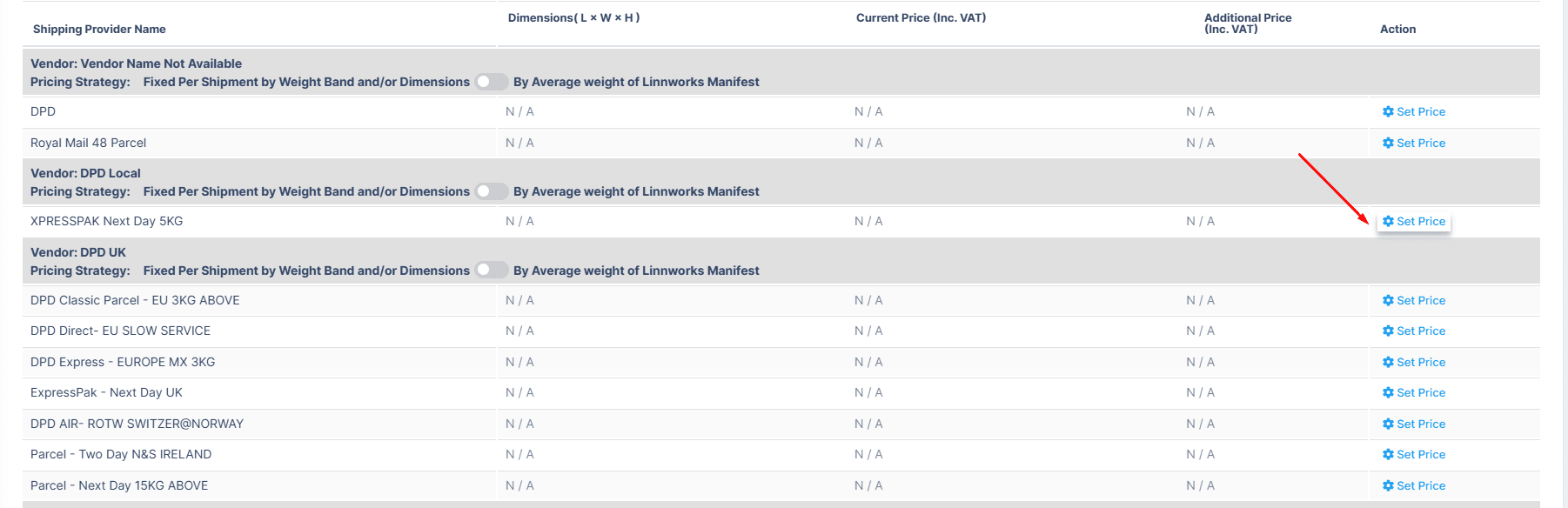
- Click “Set Price” next to the desired shipping provider.
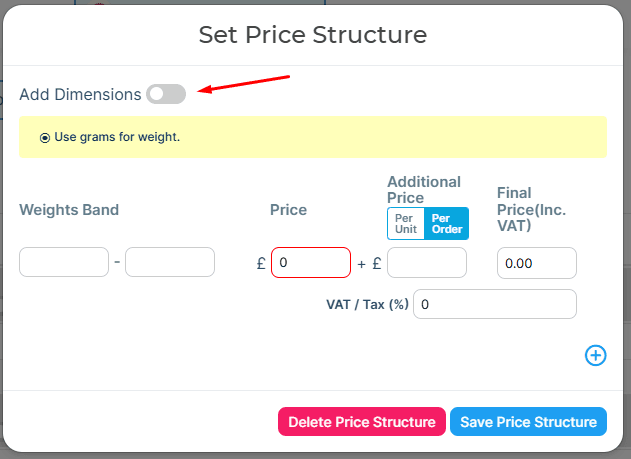
- In the Set Price Structure popup:Define Weight Bands or enable Add Dimensions if needed.
- Enter your Price, any Additional Price, and apply VAT/Tax (%) as required.
- The Final Price (Inc. VAT) will be calculated automatically.
- Click “Save Price Structure” to apply the changes.
Selling in multiple countries?
- Configure shipping prices by country