
VAT(TAX) Settings
VAT Settings & Claimback Guide
If your business is VAT registered, WhatSales can automatically account for reclaimable VAT on eligible business expenses such as marketplace fees, fulfilment charges, advertising costs, and shipping charges. This ensures your profitability reports reflect your actual costs after VAT adjustments.
This guide explains how to configure VAT settings, understand VAT calculations, and view VAT across your reports.
Direct Access
Open the VAT settings page:
https://app.whatsales.io/TaxRates
What You'll Learn
In this guide you'll learn how to:
- Enable VAT tracking
- Configure VAT rates for different expense categories
- Apply VAT settings
- View VAT in your reports
- Understand VAT liability and VAT claimback
- Troubleshoot common VAT issues
What are VAT Settings?
If you're VAT registered, you may be able to reclaim VAT paid on eligible business expenses.
WhatSales automatically tracks these amounts so you can:
- View VAT liabilities (VAT you owe)
- View VAT claimbacks (VAT you can reclaim)
- Calculate accurate net profitability
- Separate VAT from business costs
- Analyse VAT across marketplaces and expense categories
Before You Start
Before configuring VAT, ensure that:
- Your business is VAT registered.
- You know the VAT rate applicable in your country.
- You have permission to manage Tax/VAT settings in your WhatSales account.
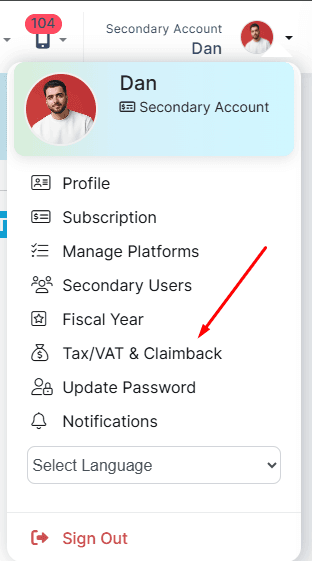
Step 1: Open Tax/VAT & Claimback
- Sign in to your WhatSales account.
- Click your profile icon in the top-right corner.
- Select Tax/VAT & Claimback.
You can also open the page directly:
https://app.whatsales.io/TaxRates
Step 2: Select Your Marketplace and Country
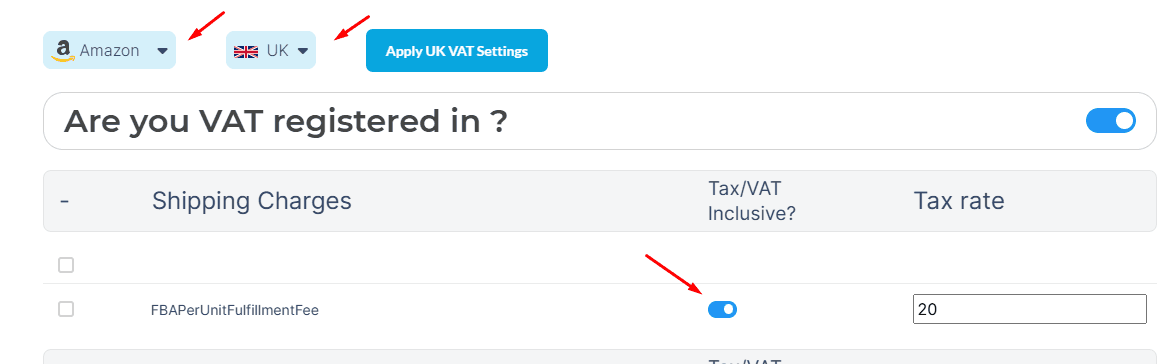
At the top of the page:
- Select your marketplace (for example, Amazon).
- Select the country where you're VAT registered.
- Click Apply UK VAT Settings (or the equivalent button for your selected country).
This loads the recommended VAT settings for your selected marketplace.
Step 3: Enable VAT Registration
Turn on the:
Are you VAT registered?
toggle.
Once enabled, VAT calculations become available for the selected marketplace and country.

Step 4: Configure VAT for Each Expense Category
Expand each expense category and review the VAT configuration.
Common categories include:
- Shipping Charges
- Ads/PPC Charges
- Order Fees
- COGS & Internal Expenses
For each transaction type:
- Enable Tax/VAT Inclusive? if the cost already includes VAT.
- Enter the correct Tax Rate.
For example:
Expense
VAT Inclusive
Tax Rate
FBAPerUnitFulfillmentFee
Yes
20%
If your shipping fee already includes VAT, simply enable the VAT Inclusive toggle and enter the correct VAT rate.
Step 5: Save Your Settings
Once you've reviewed your VAT configuration:
- Click Apply VAT Settings.
- Your VAT settings will be saved.
- Future profitability calculations will automatically include VAT adjustments.
Viewing VAT in Reports
Once VAT has been configured, WhatSales automatically calculates VAT throughout your reports.
Profit & Loss Report
If you'd like VAT to be reflected in your Profit & Loss reports:
Enable:
Incl Tax in P&L
This setting is available from your Profile Page and is saved as your permanent preference.
Order P&L
Within each order you can view:
- VAT applied
- Claimable VAT
- VAT liability
- Profit after VAT adjustments
Example:
Item
Amount
VAT Paid
£3.41
VAT Claimed Back
£1.20
Net VAT Liability
£2.21
Performance Reports
Performance reports include VAT summaries across your connected marketplaces.
You'll be able to view:
- VAT paid
- VAT claimback
- Remaining VAT liability
- VAT by marketplace
- VAT by expense category
- Shipping VAT
- Advertising VAT
- Fee VAT
- COGS VAT
This provides a complete overview of your VAT position.
VAT Terminology
Term
Description
VAT Inclusive
The cost already includes VAT.
Tax Rate
Percentage of VAT applied to the expense.
VAT Liability
VAT owed to your tax authority.
VAT Claimback
VAT reclaimable on eligible business expenses.
Incl Tax in P&L
Displays Profit & Loss after VAT adjustments.
Expected Result
After configuring VAT:
- Eligible VAT is automatically calculated.
- Claimable VAT is tracked separately.
- Profit calculations use the net cost where applicable.
- VAT appears in Order P&L reports.
- VAT appears in Performance reports.
- Profit & Loss reports can include VAT based on your preference.
Troubleshooting
If your VAT calculations don't appear correct:
- Verify you've selected the correct marketplace.
- Confirm the correct country is selected.
- Ensure VAT registration is enabled.
- Check that the correct VAT rate has been entered.
- Verify that Tax/VAT Inclusive? is enabled where appropriate.
- Confirm you've clicked Apply VAT Settings after making changes.
- Refresh your reports after saving.
If the issue persists, contact the WhatSales Support team and include:
- Order number
- Marketplace
- Screenshots from WhatSales
- Screenshots from your marketplace order details
Frequently Asked Questions
Can I use VAT Settings if I'm not VAT registered?
No. VAT Settings are intended for VAT-registered businesses only.
Does VAT affect historical orders?
VAT calculations depend on your saved VAT configuration. Historical data may not update automatically unless supported by your account configuration.
Which expenses support VAT claimback?
Eligible expenses may include:
- Shipping charges
- Marketplace fees
- Fulfilment fees
- Advertising costs
- Other VAT-applicable business expenses
Availability depends on the connected marketplace and the expense type.
Can I configure different VAT rates?
Yes. Each expense category can have its own VAT rate where applicable.
Where can I see VAT in WhatSales?
VAT information is available in:
- Order P&L
- Performance Reports
- Profit & Loss Reports (when enabled)
- VAT Settings & Claimback page
Need Help?
If you need assistance configuring VAT Settings or reviewing your VAT calculations, contact the WhatSales Customer Success team. We'll be happy to help you verify your setup and ensure your reports accurately reflect your VAT position.